EKS - Elastic Kubernetes Service
Console: https://console.aws.amazon.com/eks/home
Best practices - https://docs.aws.amazon.com/eks/latest/best-practices/introduction.html
Blog - https://aws.amazon.com/blogs/containers/category/compute/amazon-kubernetes-service/
Amazon EKS Blueprints for Terraform - https://github.com/aws-ia/terraform-aws-eks-blueprints - https://www.youtube.com/watch?v=DhoZMbqwwsw - https://github.com/aws-samples/eks-blueprints-add-ons
Amazon EKS Helm chart repository - https://github.com/aws/eks-charts
AWS Controllers for Kubernetes (ACK) - Manage AWS services from Kubernetes - https://github.com/aws-controllers-k8s - https://aws-controllers-k8s.github.io/community/
Containers roadmap - https://github.com/orgs/aws/projects/244 - https://github.com/aws/containers-roadmap
https://github.com/kubernetes-sigs/aws-iam-authenticator - Use AWS IAM credentials to authenticate to a Kubernetes cluster
What's New with Containers? https://aws.amazon.com/about-aws/whats-new/containers/?whats-new-content.sort-by=item.additionalFields.postDateTime&whats-new-content.sort-order=desc&awsf.whats-new-products=*all
https://github.com/awslabs/eksdemo - Application catalog (Argo, Cilium, Crossplane, Flux, Itio...)
EKS Node Viewer - https://github.com/awslabs/eks-node-viewer/
Find Amazon EKS optimized AMI IDs - https://github.com/guessi/eks-ami-finder
Features
- On AWS and on-premises.
- Certified Kubernetes-conformant.
- Amazon manages, scales, backups, upgrades and patches the control plane. Control plane components (API server, etcd) are deployed to multiple AZs for high availability and fault tolerance, and EKS actively monitors and adjusts control plane instances to maintain peak performance. Control plane components run in AWS-owned accounts.
- Integration with ELB, IAM for access and RBAC, VPC for isolation, CloudTrail for logging, ECR for container images, KMS for encrypting secrets...
- Cluster Autoscaler and Karpenter to dynamically scale worker nodes based on demand.
- Volumes with EBS, EFS, FSx, S3...
- Monitoring with CloudWatch container insights, Prometheus, AWS Distro for OpenTelemetry (ADOT)...
- On-prem and edge locations.
Amazon EKS Explained - https://www.youtube.com/watch?v=E956xeOt050
Glossary
- Data plane: the worker nodes where containers run.
- Node group: think of it like an EC2 Auto Scaling group.
Concepts
EKS manages Kubernetes clusters. Kubernetes manages Kubernetes objects.
The control plane (API, etcd servers, scheduler...) runs in a VPC managed by AWS, in an AWS-owned account. The data plane (worker nodes) runs in your VPC, in your customer account.
For the control plane:
- AWS will provision and manage at least two API servers spread in two distinct Availability Zones. API servers are exposed through a public Network Load Balancer.
- AWS will provision and manage etcd servers spread across three Availability Zones, using an autoscaling group.
- See "Mastering Elastic Kubernetes Service on AWS" pages 13 and 19. and Understand resilience in Amazon EKS clusters.
Communication:
- Control plane → worker nodes. The control plane is connected to your VPC through cross-account Elastic Network Interfaces (ENIs) that allow traffic from the control plane to the worker nodes. ENIs are deployed to your VPC, to the data plane subnets you specify. See VPC and subnets.
- Worker nodes → control plane. Traffic from the worker nodes to the control plane API server can stay within the customer VPC using a VPC endpoint (PrivateLink), or leave the customer VPC through a Network Load Balancer, see API server endpoint access.
Learn
https://d1.awsstatic.com/training-and-certification/ramp-up_guides/Ramp-Up_Guide_Containers.pdf
https://aws.amazon.com/architecture/containers
Skill Builder: https://skillbuilder.aws/search?searchText=eks&page=1
- https://github.com/topics/amazon-eks
- https://github.com/aws-containers/retail-store-sample-app
- Online Course Supplement: Running Containers on Amazon Elastic Kubernetes Service (Amazon EKS) - 18 h - Free - https://explore.skillbuilder.aws/learn/courses/19007/online-course-supplement-running-containers-on-amazon-elastic-kubernetes-service-amazon-eks
- AWS Modernization Pathways: Move to Containers with Amazon EKS (includes labs) - 6.6 h - https://explore.skillbuilder.aws/learn/learning-plans/1981/plan
- Deploy and debug Amazon EKS clusters - https://docs.aws.amazon.com/prescriptive-guidance/latest/patterns/deploy-and-debug-amazon-eks-clusters.html
- Deploy Kubernetes resources and packages using Amazon EKS and a Helm chart repository in Amazon S3 - https://docs.aws.amazon.com/prescriptive-guidance/latest/patterns/deploy-kubernetes-resources-and-packages-using-amazon-eks-and-a-helm-chart-repository-in-amazon-s3.html
- Lab - Building and Deploying a Containerized Application with Amazon Elastic Kubernetes Service - 1 h - https://explore.skillbuilder.aws/learn/courses/13993/building-and-deploying-a-containerized-application-with-amazon-elastic-kubernetes-service
- Lab - Deploy Applications on Amazon Elastic Kubernetes Service (EKS) - 1 h - https://explore.skillbuilder.aws/learn/courses/22325/lab-deploy-applications-on-amazon-elastic-kubernetes-service-eks
- Digital Classroom - Running Containers on Amazon Elastic Kubernetes Service (Amazon EKS) - 18 h - Requires an AWS Skill Builder annual subscription - https://explore.skillbuilder.aws/learn/courses/17210/digital-classroom-running-containers-on-amazon-elastic-kubernetes-service-amazon-eks
- Amazon EKS - Knowledge Badge Readiness Path (learning plan) - https://explore.skillbuilder.aws/learn/public/learning_plan/view/1931/amazon-eks-knowledge-badge-readiness-path
- https://workshops.aws/categories/Containers
- https://workshops.aws/categories/Amazon%20EKS
- https://workshops.aws/categories/Containers?tag=EKS
- https://workshops.aws/?tag=EKS
- EKS Immersion Workshop - https://catalog.workshops.aws/eks-immersionday/en-US
- https://catalog.workshops.aws/eks-saas-gitops/en-US - https://github.com/aws-samples/eks-saas-gitops - Argo Workflows, Flux, Helm
- https://catalog.workshops.aws/eks-security-immersionday/en-US - https://github.com/aws-samples/amazon-eks-security-immersion-day
- EKS Terraform Workshop - https://tf-eks-workshop.workshop.aws/
- Web Application Hosts on EKS Workshop - https://catalog.us-east-1.prod.workshops.aws/workshops/a1101fcc-c7cf-4dd5-98c4-f599a65056d5/en-US
- Deploy a Container Web App on Amazon EKS - https://aws.amazon.com/getting-started/guides/deploy-webapp-eks
- Guidance for Automated Provisioning of Application-Ready Amazon EKS Clusters - https://aws.amazon.com/solutions/guidance/automated-provisioning-of-application-ready-amazon-eks-clusters/ - https://aws-solutions-library-samples.github.io/compute/automated-provisioning-of-application-ready-amazon-eks-clusters.html
- Guidance for Monitoring Amazon EKS Workloads Using Amazon Managed Services for Prometheus & Grafana - https://aws.amazon.com/solutions/guidance/monitoring-amazon-eks-workloads-using-amazon-managed-services-for-prometheus-and-grafana/
- Host a Dynamic Application with Kubernetes and AWS EKS, Helm, ECR, Secrets Manager - https://www.aosnote.com/offers/sQZUgFJY/checkout
- https://kodekloud.com/courses/aws-eks
- Mastering Elastic Kubernetes Service on AWS: Deploy and manage EKS clusters to support cloud-native applications in AWS - https://www.packtpub.com/en-us/product/mastering-elastic-kubernetes-service-on-aws-9781803231211
- Designing for high availability and resiliency in Amazon EKS applications - https://docs.aws.amazon.com/prescriptive-guidance/latest/ha-resiliency-amazon-eks-apps/introduction.html
- Examples of golden paths for internal development platforms - https://docs.aws.amazon.com/prescriptive-guidance/latest/internal-developer-platform/examples.html#example-eks
- Place Kubernetes Pods on Amazon EKS by using node affinity, taints, and tolerations - https://docs.aws.amazon.com/prescriptive-guidance/latest/patterns/place-kubernetes-pods-on-amazon-eks-by-using-node-affinity-taints-and-tolerations.html
- Deploy a gRPC-based application on an Amazon EKS cluster and access it with an Application Load Balancer - https://docs.aws.amazon.com/prescriptive-guidance/latest/patterns/deploy-a-grpc-based-application-on-an-amazon-eks-cluster-and-access-it-with-an-application-load-balancer.html
- Access container applications privately on Amazon EKS using AWS PrivateLink and a Network Load Balancer - https://docs.aws.amazon.com/prescriptive-guidance/latest/patterns/access-container-applications-privately-on-amazon-eks-using-aws-privatelink-and-a-network-load-balancer.html
- Scaling Amazon EKS infrastructure to optimize compute, workloads, and network performance - https://docs.aws.amazon.com/prescriptive-guidance/latest/scaling-amazon-eks-infrastructure/introduction.html
- https://github.com/guessi/eks-tutorials
- https://www.udemy.com/course/aws-eks-kubernetes-masterclass-devops-microservices
EKS Workshop
https://www.eksworkshop.com - https://github.com/aws-samples/eks-workshop-v2 - Source code of the app: https://github.com/aws-containers/retail-store-sample-app
You should start each lab from the page indicated by this badge. Starting in the middle of a lab will cause unpredictable behavior.
If the cluster is not functioning, run the command prepare-environment to reset it.
IAM roles
AWS managed policies for Amazon Elastic Kubernetes Service - https://docs.aws.amazon.com/eks/latest/userguide/security-iam-awsmanpol.html
| IAM Role | Used On (EKS Mode) | Assumed By | Principal | Purpose | Permissions Policy |
|---|---|---|---|---|---|
| Cluster role | All clusters | EKS control plane | Service: eks.amazonaws.com | Allow EKS to manage cluster resources (EC2, Auto Scaling, ELB, ENIs) | AmazonEKSClusterPolicy, AmazonEKSVPCResourceController |
| Node instance role | EC2-based nodes | Worker nodes (EC2 instances) | Service: ec2.amazonaws.com | Allow EC2 instances to access AWS (pull ECR images, CNI, etc.) | AmazonEKSWorkerNodePolicy, AmazonEKS_CNI_Policy, AmazonEC2ContainerRegistryPullOnly |
| Fargate pod execution | Fargate profiles | Fargate infrastructure | Service: eks-fargate-pods.amazonaws.com | Pull images, CloudWatch logs, network setup | AmazonEKSFargatePodExecutionRolePolicy, CloudWatchLogsFullAccess (optional) |
| IRSA | EC2 or Fargate pods | Pods (via service accounts) | Federated: arn:aws:iam::<account-id>:oidc-provider/<oidc-provider> | Allow pods (apps) fine-grained access to AWS services (S3, DynamoDB) | Custom (eg S3, DynamoDB) |
| EKS Pod Identity | EC2 or Fargate pods | Pods (via EKS agent) | Service: pods.eks.amazonaws.com | App-level AWS API access without OIDC | Custom (eg S3, DynamoDB) |
Note: to run Pods on Fargate you need a Pod execution IAM role.
Cluster role
https://docs.aws.amazon.com/eks/latest/userguide/cluster-iam-role.html
Allows the cluster Kubernetes control plane to manage AWS resources on your behalf. Clusters use this role to manage nodes.
The role has the AWS managed permission policy AmazonEKSClusterPolicy, which allows the control plane to interact with the following AWS services: EC2, Elastic Load Balancing, Auto Scaling and KMS (see explanation).
If using Auto Mode, you must also attach AmazonEKSBlockStoragePolicy, AmazonEKSComputePolicy, AmazonEKSLoadBalancingPolicy, AmazonEKSNetworkingPolicy (see below).
You also need attach AmazonEKSVPCResourceController if you install the VPC Resource Controller to manage ENIs and IP addresses for worker nodes (see explanation). You install the VPC Resource Controller when:
- You want to assign pod-specific security groups (not just node-level). See Assign security groups to individual Pods.
- Using Windows worker nodes.
- Custom networking (ENI trunking). Advanced CNI features like prefix delegation or trunk ENIs.
- ENI trunking (aka trunk & branch ENIs) is an AWS VPC networking mode that lets a single EC2 instance host many more pod IPs by attaching multiple “branch” ENIs to a special “trunk” ENI on the instance.
Create using console
Go to IAM → Roles, click "Create role" and set:
- Trusted entity type: AWS service
- Service or use case: EKS - Cluster. Allows the cluster Kubernetes control plane to manage AWS resources on your behalf.
The wizard attaches the AWS managed permission policy AmazonEKSClusterPolicy. If you need AmazonEKSVPCResourceController, after the role is created, go to the role page and at the Permissions tab, do "Add permissions" → "Attach policies" and attach it.
Trust policy (trusted entities):
{
  "Version": "2012-10-17",
  "Statement": [
    {
      "Effect": "Allow",
      "Principal": {
        "Service": "eks.amazonaws.com"
      },
      "Action": "sts:AssumeRole"
    }
  ]
}
Create using CLI
https://docs.aws.amazon.com/eks/latest/userguide/getting-started-console.html#eks-create-cluster
aws iam create-role \
  --role-name MyAmazonEKSClusterRole \
  --assume-role-policy-document file://"eks-cluster-role-trust-policy.json"
aws iam attach-role-policy \
  --policy-arn arn:aws:iam::aws:policy/AmazonEKSClusterPolicy \
  --role-name MyAmazonEKSClusterRole
Node role
https://docs.aws.amazon.com/eks/latest/userguide/create-node-role.html
The node role is assumed by EC2 instances, the worker nodes. Is like an EC2 instance profile. You can see the role at the EC2 console → Instances → select an instance → IAM Role.
Gives permissions to the kubelet running on the node to make calls to the Kubernetes API and other AWS APIs on your behalf. This includes permissions to access container registries like ECR where your application container images are stored.
Create using console
Go to IAM → Roles, click "Create role" and set:
- Trusted entity type: AWS service
- Service or use case: EC2. Allows EC2 instances to call AWS services on your behalf.
At the "Add permissions" page, filter by "EKS" and attach these policies:
- AmazonEKSWorkerNodePolicy. Allows Amazon EKS worker nodes to connect to Amazon EKS Clusters. See explanation.
- AmazonEKS_CNI_Policy. Allows the nodes to configure the Elastic Network Interfaces and IP addresses on your EKS worker nodes. See explanation (optional).
Then filter by "ec2containerregistry" and attach the policy AmazonEC2ContainerRegistryPullOnly, which allows the nodes to pull images from ECR. You can also use AmazonEC2ContainerRegistryReadOnly, which allows to list repositories, describe images, etc, but AmazonEC2ContainerRegistryPullOnly is preferred since it follows least-privilege. By adding either of these permission policies, we can use private ECR repositories without having to specify imagePullSecrets in the Kubernetes pod spec.
Optional: If you want to access the nodes using Session Manager, attach AmazonSSMManagedInstanceCore. The SSM Agent is installed automatically on Amazon EKS optimized AMIs (source).
Trust policy (trusted entities):
{
  "Version": "2012-10-17",
  "Statement": [
    {
      "Effect": "Allow",
      "Principal": {
        "Service": "ec2.amazonaws.com"
      },
      "Action": "sts:AssumeRole"
    }
  ]
}
Create using CLI
https://docs.aws.amazon.com/eks/latest/userguide/getting-started-console.html#eks-launch-workers1
aws iam create-role \
  --role-name MyAmazonEKSNodeRole \
  --assume-role-policy-document file://"node-role-trust-policy.json"
aws iam attach-role-policy \
  --policy-arn arn:aws:iam::aws:policy/AmazonEKSWorkerNodePolicy \
  --role-name MyAmazonEKSNodeRole
aws iam attach-role-policy \
  --policy-arn arn:aws:iam::aws:policy/AmazonEKS_CNI_Policy \
  --role-name MyAmazonEKSNodeRole
aws iam attach-role-policy \
  --policy-arn arn:aws:iam::aws:policy/AmazonEC2ContainerRegistryPullOnly \
  --role-name MyAmazonEKSNodeRole
IRSA (IAM roles for service accounts)
Is recommended to use pod identity instead.
https://docs.aws.amazon.com/eks/latest/userguide/iam-roles-for-service-accounts.html
https://aws.amazon.com/blogs/opensource/introducing-fine-grained-iam-roles-service-accounts/
https://aws.amazon.com/blogs/containers/diving-into-iam-roles-for-service-accounts/
https://www.eksworkshop.com/docs/security/iam-roles-for-service-accounts/
Enables Kubernetes service accounts to assume IAM roles. Allows individual pods to assume IAM roles and securely access AWS services (like S3 or DynamoDB) without giving permissions to the node role, which would grant permissions to all nodes. Eliminates the need to store static credentials (access keys) inside containers.
Uses an OIDC identity provider, which has a URL like https://oidc.eks.<region>.amazonaws.com/id/<id>. You can find the URL at the EKS console → your cluster → Overview tab → Details section → OpenID Connect provider URL, or by running aws eks describe-cluster --name MyCluster --region us-east-1 --query cluster.identity.oidc.issuer --output text. The OIDC endpoint is called JSON Web Key Set (JWKS) and exposes public keys used to verify the signature of the OIDC tokens.
The OIDC provider is unique per cluster. Thus, IAM roles created for IRSA are also unique per cluster.
The authentication flow is:
- The pod uses a service account annotated with the IAM role ARN. A webhook automatically injects the environment variables
AWS_ROLE_ARNandAWS_WEB_IDENTITY_TOKEN_FILEinto the pod. - The pod requests an OIDC JWT token from the OIDC identity provider. Each cluster has its own local OIDC identity provider. This is an OAuth2 flow.
- The AWS SDK uses the OIDC JWT token to call
sts:AssumeRoleWithWebIdentityof the AWS STS service to get temporary AWS credentials to assume the IAM role. - The AWS SDK uses the temporary IAM credentials to access AWS services.
Setup using console
First, you need to create an OIDC Identity Provider. This is done only once per cluster.
See instructions at Create an IAM OIDC provider for your cluster.
At the IAM console → Identity providers, click "Add provider" and set:
- Provider type: OpenID Connect.
- Provider URL: the OIDC provider URL of your cluster (
https://oidc.eks.<region>.amazonaws.com/id/<id>). - Audience:
sts.amazonaws.com.
Next, create an IAM role to be used by a Kubernetes service account. Go to the IAM console → Roles and click "Create role". Set:
- Trusted entity type: Custom trust policy.
- Paste this trust policy (trusted entities), replacing
<account-id>,<oidc-provider>,<namespace>and<service-account-name>:
{
  "Version": "2012-10-17",
  "Statement": [
    {
      "Effect": "Allow",
      "Principal": {
        "Federated": "arn:aws:iam::<account-id>:oidc-provider/<oidc-provider>"
      },
      "Action": "sts:AssumeRoleWithWebIdentity",
      "Condition": {
        "StringEquals": {
          "<oidc-provider>:aud": "sts.amazonaws.com",
          "<oidc-provider>:sub": "system:serviceaccount:<namespace>:<service-account-name>"
        }
      }
    }
  ]
}
Note that the Principal is Federated, not Service. The <oidc-provider> is oidc.eks.<region>.amazonaws.com/id/<id>. You can get it at the console, at the cluster Overview tab → Details section → OpenID Connect provider URL (remove https://), or by running aws eks describe-cluster --name MyCluster --region us-east-1 --query cluster.identity.oidc.issuer --output text | sed -e "s/^https:\/\///".
Select any permissions policy you need, for example AmazonS3FullAccess to access S3 or SecretsManagerReadWrite to access Secrets Manager.
The service account needs to have an annotation with the IAM role ARN:
apiVersion: v1
kind: ServiceAccount
metadata:
  name: <service-account-name>
  namespace: <namespace>
  annotations:
    eks.amazonaws.com/role-arn: arn:aws:iam::<account-id>:role/MyEKSServiceAccountRole
The annotation is only needed with IRSA, not with pod identity, where the association is done through the aws_eks_pod_identity_association resource instead.
Create the service account with kubectl apply -f irsa-service-account.yaml or by running:
kubectl create serviceaccount <service-account-name> -n <namespace>
# Annotate the service account to link it to the IAM role:
kubectl annotate serviceaccount <service-account-name> -n <namespace> eks.amazonaws.com/role-arn=arn:aws:iam::<account-id>:role/MyEKSServiceAccountRole
To see the annotation, run kubectl get serviceaccount <service-account-name> -n <namespace> -o yaml or kubectl describe serviceaccount <service-account-name> -n <namespace>.
Setup using Terraform
https://github.com/Apress/AWS-EKS-Essentials/tree/main/chapter15-irsa
Pod Identity
https://docs.aws.amazon.com/eks/latest/userguide/pod-identities.html
https://aws.amazon.com/about-aws/whats-new/2023/11/amazon-eks-pod-identity/
Makes it easy to use an IAM role across multiple clusters without the need to update the role trust policy and simplifies policy management by enabling the reuse of permission policies across IAM roles
https://www.eksworkshop.com/docs/security/amazon-eks-pod-identity/
EKS Pod Identity vs IRSA - https://www.youtube.com/watch?v=aUjJSorBE70
Does the same than IRSA, but with less config and doesn't require OIDC. Is backwards compatible with IRSA.
To grant workloads access to AWS resources using AWS APIs, you use Pod Identity to associate an AWS IAM Role to a Kubernetes Service Account.
Roles can be used in multiple clusters, unlike IRSA, because we don't have a different OIDC provider for each cluster.
You need to install the EKS Pod Identity Agent, an EKS Add-on, which is an agent pod that runs on each node. It's pre-installed on EKS Auto Mode clusters.
You need to create an EKS Pod Identity Association between a service account in an EKS cluster and an IAM role with EKS Pod Identity, in a specific namespace. The pod identity agent running on the EKS nodes will use this association to provide the IAM role credentials to the pods running with the specified service account. The AWS SDKs and CLI running in the pod will then use these credentials for AWS API calls.
If a pod uses a service account that has an association, Amazon EKS sets environment variables in the containers of the pod. The environment variables configure the Amazon Web Services SDKs, including the Command Line Interface, to use the EKS Pod Identity credentials.
Source code: https://github.com/aws/eks-pod-identity-agent
Trust policy (trusted entities):
{
  "Version": "2012-10-17",
  "Statement": [
    {
      "Effect": "Allow",
      "Principal": {
        "Service": "pods.eks.amazonaws.com"
      },
      "Action": ["sts:AssumeRole", "sts:TagSession"]
    }
  ]
}
The service account does not need any annotation, unlike IRSA:
apiVersion: v1
kind: ServiceAccount
metadata:
  name: my-service-account
  namespace: my-namespace
Associate an IAM role with a Kubernetes service account:
aws eks create-pod-identity-association \
  --clusterName my-cluster \
  --namespace my-namespace \
  --serviceAccount my-service-account \
  --roleARN my-iam-role-arn
To verify that we have permissions run:
kubectl exec -it my-pod -- aws sts get-caller-identity
Setup using Terraform
https://github.com/Apress/AWS-EKS-Essentials/tree/main/chapter15-pod-id
resource "aws_eks_addon" "pod_identity_agent" {
  addon_name   = "eks-pod-identity-agent"
  cluster_name = aws_eks_cluster.main.name
  resolve_conflicts_on_create = "OVERWRITE"
  resolve_conflicts_on_update = "OVERWRITE"
}

resource "aws_iam_role" "server_pod" {
  name = "${var.app_name}-server-pod-role-${var.environment}"

  assume_role_policy = jsonencode({
    Version = "2012-10-17"
    Statement = [
      {
        Effect = "Allow"
        Principal = {
          Service = "pods.eks.amazonaws.com"
        }
        Action = [
          "sts:AssumeRole",
          "sts:TagSession"
        ]
      }
    ]
  })
}

resource "aws_eks_pod_identity_association" "server" {
  cluster_name    = var.cluster_name
  namespace       = var.namespace
  service_account = var.service_account_name
  role_arn        = aws_iam_role.server_pod.arn

  tags = {
    Name = "${var.app_name}-pod-identity-association-server-${var.environment}"
  }
}

resource "aws_iam_policy" "secrets_manager" {
  name        = "${var.app_name}-secrets-manager-policy-${var.environment}"
  description = "Allow Secrets Manager access for ${var.app_name} in ${var.environment} environment"

  policy = jsonencode({
    Version = "2012-10-17"
    Statement = [
      {
        Effect = "Allow"
        Action = [
          "secretsmanager:GetSecretValue"
        ]
        Resource = [
          var.secrets_manager_secret_rds_credentials_arn
        ]
      }
    ]
  })
}

resource "aws_iam_role_policy_attachment" "secrets_manager" {
  role       = aws_iam_role.server_pod.name
  policy_arn = aws_iam_policy.secrets_manager.arn
}
Security groups
https://www.eksworkshop.com/docs/networking/vpc-cni/security-groups-for-pods/
[ EKS Control Plane ]
          |
          | TCP 443, 10250
          |
[ Cluster SG ] <----> [ Node SG ]
                             |
                             | Node-to-node / Pod-to-pod
                             |
                       [ Worker Nodes ]
Cluster security group
https://docs.aws.amazon.com/eks/latest/userguide/sec-group-reqs.html
Allows communication between the control plane (API server) and worker nodes:
- Control plane ↔ kubelet communication (API, health checks)
- Control plane ↔ cluster add-ons (CNI plugin, CoreDNS, etc.)
Is created by EKS automatically when you create a cluster, but you can add additional ones.
Name is like: eks-cluster-sg-<cluster-name>-<random-id>. For example, eks-cluster-sg-MyCluster-303637302.
EKS automatically associates this security group to the following resources that it also creates:
- 2–4 cross-account elastic network interfaces (ENIs) that are created when you create a cluster.
- Network interfaces of the nodes in any managed node group that you create.`
The SG description is:
EKS created security group applied to ENI that is attached to EKS Control Plane master nodes, as well as any managed workloads.
When you create a cluster at the console there is a field to specify "Additional security groups" with this description:
EKS automatically creates a cluster security group on cluster creation to facilitate communication between worker nodes and control plane. Optionally, choose additional security groups to apply to the EKS-managed Elastic Network Interfaces that are created in your control plane subnets.
The Info sidebar says:
The Cluster Security Group is a unified security group that is used to control communications between the Kubernetes control plane and compute resources on the cluster. The cluster security group is applied by default to the Kubernetes control plane managed by Amazon EKS as well as any managed compute resources created by Amazon EKS. Additional cluster security groups control communications from the Kubernetes control plane to compute resources in your account. Worker node security groups are security groups applied to unmanaged worker nodes that control communications from worker nodes to the Kubernetes control plane.
The default rules are:
| Direction | Protocol | Ports | Source | Destination | Description |
|---|---|---|---|---|---|
| Inbound | All | All | Self SG | Allows EFA traffic, which is not matched by CIDR rules. | |
| Outbound | All | All | 0.0.0.0/0(IPv4) or ::/0 (IPv6) | ||
| Outbound | All | All | Self SG | Allows EFA traffic, which is not matched by CIDR rules. |
The outbound rules can be modified, but the inbound not. From https://aws.amazon.com/blogs/containers/enhanced-vpc-flexibility-modify-subnets-and-security-groups-in-amazon-eks/
The default inbound rules include all access from within the security group and shared node security group, which enables bi-directional communication between the control plane and the nodes. Today, these rules can’t be deleted or modified. If you remove the default inbound rule, then Amazon EKS recreates it whenever the cluster is updated.
The default outbound rule of the cluster security group allows all traffic. Optionally, users can remove this egress rule and limit the open ports between the cluster and nodes. You can remove the default outbound rule and add the minimum rules required for the cluster.
The default cluster SG allows all outbound traffic to any destination (0.0.0.0/0). You can remove the default outbound rule, but you must allow:
- Outbound TCP 443 to reach the worker nodes.
- Outbound TCP 10250 for the kubelet API.
- Outbound TCP and UDP 53 for DNS.
- Access to ECR to pull images, access to S3... See Restricting cluster traffic.
Revoke EKS Cluster Security Group Egress Rule - https://github.com/aws-samples/revoke-eks-cluster-security-group-egress-rule
The cluster SG is used as the source in an inbound rule on the node's SG. EKS automatically updates the node's security group inbound rules to allow inbound traffic on TCP 443 from the cluster security group. That rule is what lets the control plane (which uses the cluster SG) reach each node's kubelet API.
   +---------------------------+
   |      EKS Control Plane    |
   |  (AWS-managed ENIs w/     |
   |   Cluster Security Group) |
   +-------------+-------------+
                 |
    TCP 443      |
 (kubelet API)   |
                 v
     +-----------+-----------+
     |      Worker Node      |
     |    (EC2 + Node SG)    |
     +-----------------------+
      Inbound rule: Allow 443
          from Cluster SG
In Terraform, you can set a custom security group using the field security_group_ids of the resource aws_eks_cluster:
resource "aws_eks_cluster" "main" {
  vpc_config {
    # Security group IDs for the cross-account elastic network interfaces that
    # EKS creates to use to allow communication between your worker nodes and
    # the Kubernetes control plane
    security_group_ids      = [aws_security_group.cluster.id]
  }
}
To reference the default cluster SG use aws_eks_cluster.main.vpc_config[0].cluster_security_group_id.
Node security group
Controls inbound/outbound traffic for worker nodes (EC2 instances). Attached to all EC2 instances in your EKS managed node group or self-managed node group.
By default, EKS uses the cluster security group as the node security group.
Used for:
- Allow inbound SSH (for admin access).
- Allow node-to-node and pod-to-pod traffic.
- Allow outbound internet traffic (to pull images, call AWS APIs, software updates, etc.).
The node SG must allow outbound traffic on 443 to reach the control plane API server.
You use a launch template to specify a custom security group for nodes in a managed node group, using the field vpc_security_group_ids:
resource "aws_launch_template" "node" {
  vpc_security_group_ids = [aws_security_group.node.id]
}

resource "aws_eks_node_group" "example" {
  launch_template {
    id      = aws_launch_template.node.id
    version = "$Latest"
  }
}
VPC and subnets
https://docs.aws.amazon.com/eks/latest/userguide/network-reqs.html - Networking requirements for VPC and subnets
https://docs.aws.amazon.com/eks/latest/userguide/creating-a-vpc.html
https://docs.aws.amazon.com/eks/latest/userguide/create-cluster.html
https://docs.aws.amazon.com/eks/latest/best-practices/subnets.html
https://www.eksworkshop.com/docs/networking/vpc-cni/custom-networking/
https://www.reddit.com/r/aws/comments/12bdyj5/eks_changingadding_subnets/
Don't use the default VPC, use a custom VPC with private subnets. Deploy nodes in private subnets and use public subnets for load balancers and ingress.
Control plane → worker node communication. The control plane is connected to your VPC through cross-account Elastic Network Interfaces (ENIs) that allow traffic from the control plane to the worker nodes. ENIs are deployed to your VPC, to the subnets of the data plane you specify when you create a new cluster (Choose the subnets in your VPC where the control plane may place elastic network interfaces (ENIs) to facilitate communication with your cluster.). These subnets are known as the cluster subnets.
These network interfaces also enable Kubernetes features that use the kubelet API such as kubectl attach, kubectl cp, kubectl exec, kubectl logs and kubectl port-forward commands.
There are two to four ENIs, so you must specify at least two subnets, which must be in at least two different Availability Zones. ENIs can be deployed to public and private subnets, but it is recommended to use private subnets.
You can see the EKS created ENIs at the EC2 console. They have the description Amazon EKS ${clusterName}. You can see the subnets at the field cluster.resourcesVpcConfig.subnetIds of aws eks describe-cluster, or at the EKS console (Networking tab). You can change them at the Networking tab → Manage → VPC Resources.
Note that the ENIs that allow control plane to worker nodes communication are always deployed. In contrast, the VPC endpoint (AWS PrivateLink) that allows private communication from worker nodes to the control plane API server is only deployed if you configure endpoint private access, see API server endpoint access.
You can't use subnets in AZ use1-az3 (us-east-1), usw1-az2 (us-west-1) and cac1-az3 (ca-central-1) (source). You get this error: UnsupportedAvailabilityZoneException: Cannot create cluster 'kubernetes-example' because EKS does not support creating control plane instances in us-east-1e, the targeted availability zone. Retry cluster creation using control plane subnets that span at least two of these availability zones: us-east-1a, us-east-1b, us-east-1c, us-east-1d, us-east-1f. Note, post cluster creation, you can run worker nodes in separate subnets/availability zones from control plane subnets/availability zones passed during cluster creation. Use aws ec2 describe-availability-zones to see the mapping of AZ identifiers (us-east-1e) to different AZ data centers (use1-az3).
Control subnets
Explained at https://docs.aws.amazon.com/eks/latest/userguide/network-reqs.html#network-requirements-subnets
To control which subnets network interfaces are created in, you can limit the number of subnets you specify to only two when you create a cluster.
From Apress AWS EKS Essentials page 22:
During K8s version updates, EKS deletes and recreates new ENIs. Unfortunately, there is no guarantee that EKS will create the ENIs in the same subnets as your preferred subnets except you limit the number of subnets for the ENIs to only two during or after cluster creation.
IP address exhaustion
It is recommended to place the ENIs in dedicated cluster subnets with /28 netmask, different from the worker node subnets, to reduce the odds of IP address exhaustion within the cluster network.
Note that /28 is 16 IP addresses, but the first four and the last IP addresses in each CIDR block are reserved (source).
From https://simyung.github.io/aws-eks-best-practices/networking/subnets/#vpc-configurations
Kubernetes worker nodes can run in the cluster subnets, but it is not recommended. During cluster upgrades Amazon EKS provisions additional ENIs in the cluster subnets. When your cluster scales out, worker nodes and pods may consume the available IPs in the cluster subnet. Hence in order to make sure there are enough available IPs you might want to consider using dedicated cluster subnets with /28 netmask.
From Apress AWS EKS Essentials pages 22 and 70:
In production environments, ENIs are often deployed in their own subnets such that they do not coexist with the worker nodes. This is necessary to decouple the ENIs subnets from the worker nodes and to reduce the odds of IPv4 address exhaustion within the cluster network.
The ENIs subnets are often allocated the /28 CIDR block within the data plane VPC. We should have deployed the ENIs in the 10.0.1.0/28 and 10.0.2.0/28 subnets if we were to follow the best practices.
It is recommended to decouple the ENIs from the subnets of the worker nodes by deploying them in their separate /28 subnets. For example, in Figure 2-1 both worker nodes and ENIs share the same subnets, creating a highly coupled architecture and contributing to IPv4 address exhaustion.
One common misconception is that cluster subnets chosen when creating an Amazon EKS cluster serve as the primary targets for nodes and users can only use these subnets for creating the nodes (i.e., Kubernetes nodes). Instead of being the designated subnets for nodes, cluster subnets have a distinct role of hosting cross-account ENIs as specified above.
If you don’t specify separate subnets for nodes, then they may be deployed in the same subnets as your cluster subnets. Nodes and Kubernetes resources can run in the cluster subnets, but it isn’t recommended. During cluster upgrades, Amazon EKS provisions additional ENIs in the cluster subnets. When your cluster scales out, nodes and pods may consume the available IPs in the cluster subnet. Hence, in order to make sure there are enough available Ips, you might want to consider using dedicated cluster subnets with /28 netmask.
With the AWS Load Balancer Controller, you can choose the specific subnets where load balancers can be deployed, or you can use the auto-discovery feature by tagging the subnets. Cluster subnets can still be used for load balancers, but this is not a best practice, as it can lead to IP exhaustion, similar to the previous case.
Amazon EKS doesn’t automatically create new ENIs in subnets that weren’t designated as cluster subnets during the initial cluster setup. If you have worker nodes in subnets other than your original cluster subnets (i.e., where the cross-account ENIs are located), then they can still communicate with the Amazon EKS control plane if there are local routes in place within the VPC that allow this traffic. Essentially, the worker nodes need to be able to resolve and reach the Amazon EKS API server endpoint. This setup might involve transit through the subnets with the ENIs, but it’s the VPC’s internal routing that makes this possible.
Subnet tags
Public Subnets - For ALB/Ingress and NAT Gateways (/24 = 256 IPs each)
"kubernetes.io/role/elb" = "1"→ Used by Load Balancer Controller to discover subnets for internet-facing load balancers"kubernetes.io/cluster/${var.cluster_name}" = "shared"→ Used by Load Balancer Controller to discover cluster subnets
Private Subnets - For Worker Nodes (/22 = 1024 IPs each)
"kubernetes.io/role/internal-elb" = "1"→ Used by Load Balancer Controller to discover subnets for internal load balancers"kubernetes.io/cluster/${var.cluster_name}" = "shared"→ Used by Load Balancer Controller to discover cluster subnets"karpenter.sh/discovery" = var.cluster_name→ Used by Karpenter to discover subnets for provisioning EC2 instances, see nodeSelector
Private Subnets - For EKS Control Plane ENIs (/28 = 16 IPs each)
- ENI subnets don't need discovery tags since EKS uses the subnets you explicitly specify in the EKS cluster configuration to place ENIs. See
subnet_ids.
Private Subnets - For RDS (/24 = 256 IPs each)
- No discovery tags needed since these subnets are used only by RDS database instances.
Documentation: see AWS Load Balancer Controller Subnet Auto-Discovery - https://kubernetes-sigs.github.io/aws-load-balancer-controller/latest/deploy/subnet_discovery/
VPC examples
Use shared VPC subnets in Amazon EKS - https://aws.amazon.com/blogs/containers/use-shared-vpcs-in-amazon-eks/ - https://github.com/aws-samples/eks-shared-subnets/ - See AI docs at https://deepwiki.com/aws-samples/eks-shared-subnets - There are two accounts, workload and networking. There are public, private and control plane subnets.
Examples of VPC for EKS (source):
- 2 public and 2 private subnets for EKS at https://s3.us-west-2.amazonaws.com/amazon-eks/cloudformation/2020-10-29/amazon-eks-vpc-private-subnets.yaml
- Only public subnets: https://s3.us-west-2.amazonaws.com/amazon-eks/cloudformation/2020-10-29/amazon-eks-vpc-sample.yaml
- Only private subnets: https://s3.us-west-2.amazonaws.com/amazon-eks/cloudformation/2020-10-29/amazon-eks-fully-private-vpc.yaml
API server endpoint access
https://docs.aws.amazon.com/eks/latest/userguide/cluster-endpoint.html
Enable Private Access to the Amazon EKS Kubernetes API with AWS PrivateLink - https://aws.amazon.com/blogs/containers/enable-private-access-to-the-amazon-eks-kubernetes-api-with-aws-privatelink
Communication from the control plane to worker nodes always uses the ENIs in the data plane, and the ENIs are always deployed. In contrast, communication from worker nodes or external clients to the control plane API server can be configured. If you configure private access, EKS deploys an interface VPC endpoint (AWS PrivateLink) in your VPC to allow private communication from worker nodes to the control plane API server. If you configure public access, EKS deploys a public Network Load Balancer (NLB) to allow communication from external clients and worker nodes to the control plane API server.
Cluster API server endpoint access:
- Public only (default): the API server is reachable over the Internet, from outside the VPC. Worker node traffic leaves the VPC (but not Amazon’s network) to communicate to the endpoint.
- Private only: restrict API server to internal VPC traffic only. Access to a private API server is restricted to your VPC, so cluster administrators need to use a VPN like Direct Connect, a bastion host or PrivateLink. Worker node traffic to the endpoint will stay within your VPC, using the private VPC endpoint.
- Public and private: the API server is publicly accessible from outside your VPC, for example for admin tasks. Worker node traffic to the endpoint will stay within your VPC, using the private VPC endpoint.
See cluster.resourcesVpcConfig.endpointPublicAccess and cluster.resourcesVpcConfig.endpointPrivateAccess in the output of aws eks describe-cluster --name $EKS_CLUSTER_NAME.
You can define a CIDR block for the public API server endpoint access, to restrict which IPs can access the endpoint. See cluster.resourcesVpcConfig.publicAccessCidrs in the output of aws eks describe-cluster --name $EKS_CLUSTER_NAME. From the console:
You can, optionally, limit the CIDR blocks that can access the public endpoint. If you limit access to specific CIDR blocks, then it is recommended that you also enable the private endpoint, or ensure that the CIDR blocks that you specify include the addresses that worker nodes and Fargate pods (if you use them) access the public endpoint from.
Cluster Access Management API
https://docs.aws.amazon.com/eks/latest/userguide/grant-k8s-access.html
https://www.eksworkshop.com/docs/security/cluster-access-management/
The Cluster Access Management API is used to to provide authentication and authorization for AWS IAM principals to Amazon EKS Clusters. It simplifies identity mapping between AWS IAM and Kubernetes RBAC, eliminating the need to switch between AWS and Kubernetes APIs for access management.
Before the Cluster Access Management API was available, Amazon EKS relied on the aws-auth ConfigMap.
Initially, the AWS user account used to create the cluster is the only user account that will have access.
Cluster authentication modes (accessConfig):
aws-authConfigMap only (CONFIG_MAP). The original, old method. Will be deprecated in the future.- Both EKS API and
aws-authConfigMap (API_AND_CONFIG_MAP). - EKS API - Access entries only (
API). Recommended. What you get if you create a cluster using the management console. Required by Auto Mode.
See which cluster authentication mode you are using: aws eks describe-cluster --name $EKS_CLUSTER_NAME --query cluster.accessConfig. With EKS API it returns { "authenticationMode": "API" }.
You can update your cluster configuration from CONFIG_MAP to API_AND_CONFIG_MAP, and from API_AND_CONFIG_MAP to API, but not the other way around.
- Access entries: IAM principals (users or roles) that are granted access to the cluster using the Cluster Access Management API. They are bound to a cluster.
- List access entries in your cluster:
aws eks list-access-entries --cluster $EKS_CLUSTER_NAME. - You can view them at the console, at the cluster → "Access" tab → "IAM access entries".
- List access entries in your cluster:
- Access policies: predefined sets of EKS specific permission policies that can be assigned to access entries. They exist in your AWS account even if you don't have any cluster.
- AmazonEKSAdminPolicy, AmazonEKSClusterAdminPolicy, AmazonEKSAdminViewPolicy, etc.
- See policy description at https://www.eksworkshop.com/docs/security/cluster-access-management/understanding
- All the policies ARNs are
arn:aws:eks::aws:cluster-access-policy/XYZ. - List access policies in your account:
aws eks list-access-policiesoraws eks list-access-policies --output table.
To see an access entry use describe-access-entry, where <principal-arn> is the ARN of the IAM user or role from aws eks list-access-entries --cluster $EKS_CLUSTER_NAME:
aws eks describe-access-entry --cluster $EKS_CLUSTER_NAME --principal-arn <principal-arn>
Cluster access with kubectl
Connect kubectl to an EKS cluster by creating a kubeconfig file - https://docs.aws.amazon.com/eks/latest/userguide/create-kubeconfig.html
Use update-kubeconfig docs to configure kubectl to talk to an EKS cluster using AWS Credentials:
aws eks update-kubeconfig --name <cluster>
aws eks update-kubeconfig --name <cluster> --region <REGION> --alias <cluster>
# Added new context arn:aws:eks:us-east-1:111222333444:cluster/My-EKS-Cluster to /Users/albert/.kube/config
This updates the kubeconfig file (~/.kube/config), adding a new entry. (Use kubectl config get-contexts and kubectl config current-context to view the new context, and kubectl cluster-info to view the cluster info.)
At the ~/.kube/config file, the value of cluster.server will match the value of the "API server endpoint" at the management console, and the value of cluster.certificate-authority-data will match the "Certificate authority". (Use kubectl config view to view the kubeconfig.)
Authorization error
Initially, only the IAM principal that created the cluster has cluster administrator access. You can run kubectl version to check if your AWS CLI profile has access to the cluster. If the output says Server Version: v1.34.1-eks-d96d92f, then you have access. But if it says "error: You must be logged in to the server (the server has asked for the client to provide credentials)", you don't.
To fix access see:
- Unauthorized or access denied (kubectl) - https://docs.aws.amazon.com/eks/latest/userguide/troubleshooting.html#unauthorized
- https://repost.aws/knowledge-center/eks-api-server-unauthorized-error
- https://www.youtube.com/watch?v=GI4Kt8gBIA0
- https://stackoverflow.com/questions/50791303/kubectl-error-you-must-be-logged-in-to-the-server-unauthorized-when-accessing
You can also give a principal administrator access using the management console. To configure a new IAM access entry, go to the cluster → "Access" tab → "IAM access entries" and click "Create". Select the "IAM principal ARN". Set "Type" to "Standard". Select the access policy AmazonEKSClusterAdminPolicy.
Cluster upgrades
https://docs.aws.amazon.com/eks/latest/best-practices/cluster-upgrades.html
CLI
https://docs.aws.amazon.com/cli/latest/reference/eks/
List available commands: aws eks help
Update kubeconfig file to access the cluster with kubectl
aws eks list-clusters
Provides similar information than kubectl cluster-info and kubectl version.
aws eks describe-cluster --name MyCluster
aws eks describe-cluster --name $EKS_CLUSTER_NAME --query cluster.accessConfig
Get the OIDC provider URL (--region is optional if you have set a default region in your AWS CLI config file):
aws eks describe-cluster --name MyCluster --region us-east-1 --query cluster.identity.oidc.issuer --output text
Save to a variable:
VPC_ID=$(aws eks describe-cluster --name $EKS_CLUSTER_NAME --query cluster.resourcesVpcConfig.vpcId --output text)
Wait for a cluster to have status ACTIVE:
aws eks wait cluster-active --name $EKS_CLUSTER_NAME
# When done doing
aws eks describe-cluster --name $EKS_CLUSTER_NAME --query cluster.status
# Will print "ACTIVE"
aws eks update-cluster-config \
    --name $EKS_CLUSTER_NAME \
    --resources-vpc-config endpointPrivateAccess=true,endpointPublicAccess=false
List available access policies (AmazonEKSAdminPolicy, AmazonEKSClusterAdminPolicy, etc.) in your account:
aws eks list-access-policies
All the policies ARNs are arn:aws:eks::aws:cluster-access-policy/XYZ.
List access entries in your cluster:
aws eks list-access-entries --cluster $EKS_CLUSTER_NAME
List associated access policies for an IAM principal (user or role):
aws eks list-associated-access-policies \
    --cluster-name $EKS_CLUSTER_NAME \
    --principal-arn <iam_principal_arn>
eksctl
https://eksctl.io - https://github.com/eksctl-io/eksctl
You can install it using a script. To install with Homebrew there are 3 options:
brew tap weaveworks/tapandbrew install weaveworks/tap/eksctl: https://github.com/weaveworks/homebrew-tap/blob/master/Formula/eksctl.rbbrew tap aws/tapandbrew install aws/tap/eksctl: https://github.com/aws/homebrew-tap/blob/master/Formula/eksctl.rb → Still not offering the latest release after 2 weeks of being out :/brew install eksctl: https://formulae.brew.sh/formula/eksctl#default → I've used this
ClusterConfig file examples: https://github.com/guessi/eks-tutorials/tree/main/cluster-config
# Adapted from https://github.com/guessi/eks-tutorials/blob/main/cluster-config/cluster-full.yaml

apiVersion: eksctl.io/v1alpha5
kind: ClusterConfig

metadata:
  name: My-EKS-Cluster
  region: us-east-1
  version: '1.34'

availabilityZones:
  - us-east-1a
  - us-east-1b

privateCluster:
  enabled: false

kubernetesNetworkConfig:
  ipFamily: IPv4

vpc:
  cidr: 192.168.0.0/16
  clusterEndpoints:
    privateAccess: true
    publicAccess: true
  manageSharedNodeSecurityGroupRules: true
  nat:
    gateway: Single # Options: HighlyAvailable, Disable, Single (default)
  publicAccessCIDRs: # you should configured a proper CIDR list here
    - 0.0.0.0/0

accessConfig:
  authenticationMode: API_AND_CONFIG_MAP
  bootstrapClusterCreatorAdminPermissions: true

iam:
  withOIDC: true

managedNodeGroups:
  - name: mng-1
    amiFamily: AmazonLinux2023
    minSize: 2
    maxSize: 3
    desiredCapacity: 2
    volumeSize: 20
    volumeType: gp3
    instanceTypes:
      - 't3.small'
    enableDetailedMonitoring: true
    privateNetworking: true
    disableIMDSv1: true
    disablePodIMDS: false
    spot: true
    ssh:
      allow: false
    # availabilityZones:
    # - us-east-1a
    iam:
      attachPolicyARNs:
        - arn:aws:iam::aws:policy/AmazonEC2ContainerRegistryPullOnly
        - arn:aws:iam::aws:policy/AmazonEKSWorkerNodePolicy
        # (Optional) Only required if you need "EC2 Instance Connect"
        - arn:aws:iam::aws:policy/AmazonSSMManagedInstanceCore
        # (Optional) Only required if you are using "SSM"
        - arn:aws:iam::aws:policy/AmazonSSMPatchAssociation
        # (Optional) Only required if you have "Amazon CloudWatch Observability" setup
        - arn:aws:iam::aws:policy/CloudWatchAgentServerPolicy
        - arn:aws:iam::aws:policy/AWSXrayWriteOnlyAccess

addonsConfig:
  autoApplyPodIdentityAssociations: true

addons:
  - name: kube-proxy
    version: latest
  - name: vpc-cni
    version: latest
    useDefaultPodIdentityAssociations: true
  - name: coredns
    version: latest
  - name: eks-pod-identity-agent
    version: latest
  - name: metrics-server
    version: latest

cloudWatch:
  # ref: https://docs.aws.amazon.com/eks/latest/userguide/control-plane-logs.html
  clusterLogging:
    logRetentionInDays: 90
    enableTypes:
      - 'api'
      - 'audit'
      - 'authenticator'
      - 'controllerManager'
      - 'scheduler'
Get command options (get help):
eksctl create cluster --help
Use --dry-run to validate a cluster configuration file:
eksctl create cluster -f cluster.yaml --dry-run
You can also use --dry-run to generate a YAML file (note that there are options that cannot be represented in the ClusterConfig file, see the docs):
eksctl create cluster --name development --dry-run > cluster.yaml
eksctl create cluster -f cluster.yaml
Create cluster:
eksctl create cluster --name MyCluster --region us-east-1 # Managed nodes
eksctl create cluster --name MyCluster --region us-east-1 --fargate
eksctl create cluster -f cluster.yaml
eksctl delete cluster --name MyCluster --region us-east-1
Add ons
https://docs.aws.amazon.com/eks/latest/userguide/workloads-add-ons-available-eks.html
| Name | Name | Category | Description | Comment |
|---|---|---|---|---|
| Amazon VPC CNI | vpc-cni | networking | Enable pod networking within your cluster | |
| CoreDNS | coredns | networking | Enable service discovery within your cluster | |
| kube-proxy | kube-proxy | networking | Enable service networking within your cluster | |
| EKS Pod Identity Agent | eks-pod-identity-agent | security | Grant AWS IAM permissions to pods through Kubernetes service accounts | |
| CloudWatch Observability agent | amazon-cloudwatch-observability | observability | Enable Container Insights and Application Signals within your cluster | |
| Metrics Server | metrics-server | observability | Collect cluster-wide resource usage data for autoscaling and monitoring | For autoscaling purposes (HPA and VPA) and the kubectl top nodes and kubectl top pods commands |
| Node Monitoring Agent | eks-node-monitoring-agent | observability | Enable automatic detection of node health issues | |
| External DNS | external-dns | networking | Control DNS records with Kubernetes resources | Automatic DNS record management in Route 53. You can also manage DNS with Terraform |
| EBS CSI Driver | aws-ebs-csi-driver | storage | Enable Elastic Block Storage (EBS) within your cluster | To use StatefulSets or persistent volumes for your database or stateful applications |
| EFS CSI Driver | aws-efs-csi-driver | storage | Enable Elastic File System (EFS) within your cluster |
The required add ons are:
- Amazon VPC CNI
- CoreDNS
- kube-proxy
- EKS Pod Identity Agent
When creating a cluster in the console it installs:
- Amazon VPC CNI
- CoreDNS
- kube-proxy
- EKS Pod Identity Agent
- Metrics Server
- Node Monitoring Agent
- External DNS
See the required platform version:
aws eks describe-addon-versions --addon-name aws-ebs-csi-driver
Compute options
https://docs.aws.amazon.com/eks/latest/userguide/eks-compute.html
https://docs.aws.amazon.com/eks/latest/userguide/eks-architecture.html#nodes
https://docs.aws.amazon.com/eks/latest/best-practices/reliability.html
- Self-managed nodes
- Managed EC2 instances for total control.
- You are responsible of the OS, kubelet, CRI and AMI configuration.
- Managed node groups
- AWS is responsible of the OS, kubelet, CRI and AMI configuration.
- Karpenter
- Continuous cost optimization. The right nodes at the right time.
- Configure for On-Demand and Spot purchasing options, diversify instance types and handle Spot interruptions.
- AWS is responsible of worker node scaling and configuration.
- Auto Mode
- AWS manages both control plane and worker nodes.
- AWS handles EC2 provisioning, scaling, patching, and security.
- The most managed option.
- Fargate serverless compute
- No need to manage EC2 nodes, even managed node groups.
- Only pay for what you use.
- Fargate compute runs in AWS owned accounts (in contrast with EC2 worker nodes, which run in customer accounts).
- Has limitations (eg no DaemonSets).
EKS suggests using private subnets for worker nodes. (From the console Info sidebar.)
EC2 instance types
https://docs.aws.amazon.com/eks/latest/userguide/choosing-instance-type.html
In general, fewer, larger instances are better, especially if you have a lot of Daemonsets. Each instance requires API calls to the API server, so the more instances you have, the more load on the API server.
https://stackoverflow.com/questions/62060942/what-ec2-instance-types-does-eks-support
Due to the way EKS works with ENIs, t3.small is the smallest instance type that can be used for worker nodes. If you try something smaller like t2.micro, which only has 4 ENIs, they'll all be used up by system services (e.g., kube-proxy) and you won't be able to deploy your own Pods. source
See number of ENIS available for each instance type here: https://github.com/aws/amazon-vpc-cni-k8s/blob/334cab5070396d914b80855add84ad7f7e2b8ed1/pkg/awsutils/vpc_ip_resource_limit.go#L19-L21
https://www.reddit.com/r/kubernetes/comments/baxrtj/eks_which_instance_types_and_why/
If you still want to use the t3 from a cost perspective, I would suggest you enable the T2/T3 Unlimited option for you instant. Where it will provide you with instant CPU cycles and you will never be throttled. However, AWS charges for these additional CPU cycles.
You need to keep a close watch on these additional CPU cycles consumption using CloudWatch. If it's continuously happening, upgrading to the M5 would be the right choice.
Note that there is a maximum number of pods for each EC2 instance type, see:
- https://docs.aws.amazon.com/eks/latest/userguide/choosing-instance-type.html#determine-max-pods
- https://aws.amazon.com/blogs/containers/amazon-vpc-cni-increases-pods-per-node-limits/
- Calculator: https://github.com/awslabs/amazon-eks-ami/blob/main/templates/al2/runtime/max-pods-calculator.sh
Managed node groups
https://docs.aws.amazon.com/eks/latest/userguide/managed-node-groups.html
https://www.eksworkshop.com/docs/fundamentals/compute/managed-node-groups/
A node group is a group of EC2 instances that supply compute capacity to your Amazon EKS cluster. You can add multiple node groups to your cluster. Node groups implement basic compute scaling through EC2 Auto Scaling groups.
Amazon EKS managed node groups make it easy to provision compute capacity for your cluster. managed node groups consist of one or more Amazon EC2 instances running the latest EKS-optimized AMIs. All nodes are provisioned as part of an Amazon EC2 Auto Scaling group that is managed for you by Amazon EKS and all resources including EC2 instances and autoscaling groups run within your AWS account.
Think of a node group like an EC2 Auto Scaling group. Indeed, when you create a node group using the console, it automatically creates an Auto Scaling group and a launch template (you can see both at the EC2 console).
You can define a custom launch template to customize the configuration of the EC2 instances.
The nodes in a node group use the node IAM role.
kubectl get nodes
kubectl get nodes --show-labels
Karpenter
https://github.com/aws/karpenter-provider-aws
https://github.com/kubernetes-sigs/karpenter
https://github.com/aws-samples/karpenter-blueprints
https://docs.aws.amazon.com/eks/latest/best-practices/karpenter.html
https://www.eksworkshop.com/docs/fundamentals/compute/karpenter/
Karpenter Workshop - https://catalog.workshops.aws/karpenter/en-US
https://www.udemy.com/course/karpenter-masterclass-for-kubernetes
Run Kubernetes Clusters for Less with Amazon EC2 Spot and Karpenter - https://community.aws/tutorials/run-kubernetes-clusters-for-less-with-amazon-ec2-spot-and-karpenter → redirects to https://builder.aws.com/content/2dhlDEUfwElQ9mhtOP6D8YJbULA/run-kubernetes-clusters-for-less-with-amazon-ec2-spot-and-karpenter
Optimize node usage: "the right nodes at the right time".
Supports spot instances and handles spot interruptions.
Karpenter vs Cluster Autoscaler:
- Karpenter is faster than Cluster Autoscaler.
- Cluster Autoscaler works with Auto Scaling Groups, whereas Karpenter uses the EC2 API directly.
- https://www.youtube.com/watch?v=FIBc8GkjFU0
- https://www.nops.io/blog/karpenter-vs-cluster-autoscaler-vs-nks/
Terraform examples:
- https://github.com/terraform-aws-modules/terraform-aws-eks/tree/master/modules/karpenter
- https://github.com/aws-ia/terraform-aws-eks-blueprints/tree/main/patterns/karpenter-mng - https://aws-ia.github.io/terraform-aws-eks-blueprints/patterns/karpenter-mng/ - Uses managed node group
- https://github.com/aws-ia/terraform-aws-eks-blueprints/tree/main/patterns/karpenter - https://aws-ia.github.io/terraform-aws-eks-blueprints/patterns/karpenter/ - Uses Fargate
Infrastructure
You can find the infrastructure needed in this CloudFormation template: https://github.com/aws/karpenter-provider-aws/blob/v1.8.3/website/content/en/preview/getting-started/getting-started-with-karpenter/cloudformation.yaml
See the description of the CloudFormation template at https://karpenter.sh/docs/reference/cloudformation/
Node role
You need an IAM role for the EC2 nodes (an instance profile) like the node role. It needs the managed permissions policies AmazonEKSWorkerNodePolicy, AmazonEKS_CNI_Policy, AmazonEC2ContainerRegistryPullOnly or AmazonEC2ContainerRegistryReadOnly, and optionally AmazonSSMManagedInstanceCore if you want to SSH to your nodes. You can create a new role or reuse the node role of the managed node group.
See:
- Description in the docs: https://karpenter.sh/docs/reference/cloudformation/#node-authorization
KarpenterNodeRole-${ClusterName}in CloudFormation: https://github.com/aws/karpenter-provider-aws/blob/c9c3a48888bceee4d01e0fec80a03a6379ca928f/website/content/en/preview/getting-started/getting-started-with-karpenter/cloudformation.yaml#L8-L26- Example in Terraform: https://github.com/Apress/AWS-EKS-Essentials/blob/2a1965d3140df4c076ca89bf7f2909e52c94876b/chapter19-karpenter/data-plane/nodes/iam.tf
Karpenter controller policy
You need a service account for the Karpenter controller with an IAM role that allows it to call the EC2 API. You can use IRSA or Pod Identity. For the role, you need an IAM permissions permissions policy: the KarpenterControllerPolicy-${ClusterName}.
See:
- Description in the docs: https://karpenter.sh/docs/reference/cloudformation/#controller-authorization
KarpenterControllerPolicy-${ClusterName}in CloudFormation: https://github.com/aws/karpenter-provider-aws/blob/c9c3a48888bceee4d01e0fec80a03a6379ca928f/website/content/en/preview/getting-started/getting-started-with-karpenter/cloudformation.yaml#L27-L301- Example in Terraform: https://github.com/terraform-aws-modules/terraform-aws-eks/blob/master/modules/karpenter/policy.tf
SQS queue
You need an SQS queue to handle spot interruptions (2-minute notice before termination) and rebalance recommendations if you are using spot instances. It also handles EC2 Instance state change notifications and AWS Health events.
See:
- Interruption in the docs: https://karpenter.sh/docs/concepts/disruption/#interruption
- SQS example in CloudFormation: https://github.com/aws/karpenter-provider-aws/blob/c9c3a48888bceee4d01e0fec80a03a6379ca928f/website/content/en/preview/getting-started/getting-started-with-karpenter/cloudformation.yaml#L302-L374
Bootstrap nodes
You need a managed node group with at least two nodes to run the Karpenter controller and CoreDNS (the CoreDNS add-on needs to be installed). Karpenter will then create additional worker nodes and deploy application pods in those nodes. From https://aws-ia.github.io/terraform-aws-eks-blueprints/patterns/karpenter-mng/:
An EKS managed node group that applies both a taint as well as a label for the Karpenter controller. We want the Karpenter controller to target these nodes via a
nodeSelectorin order to avoid the controller pods from running on nodes that Karpenter itself creates and manages.
In addition, we are applying a taint to keep other pods off of these nodes as they are primarily intended for the controller pods.
We apply a toleration to the CoreDNS addon, to allow those pods to run on the controller nodes as well. This is needed so that when a cluster is created, the CoreDNS pods have a place to run in order for the Karpenter controller to be provisioned and start managing the additional compute requirements for the cluster.
See:
- https://aws-ia.github.io/terraform-aws-eks-blueprints/patterns/karpenter-mng/#cluster
- https://github.com/aws-ia/terraform-aws-eks-blueprints/blob/05d32bb2fff08959674c1d4cfe5e34ebc723049e/patterns/karpenter-mng/eks.tf#L48-L61
- https://github.com/terraform-aws-modules/terraform-aws-eks/blob/d57cdac936efe7ae3b0edbb75340b70c6774d4f3/examples/karpenter/main.tf#L89-L92
- https://github.com/terraform-aws-modules/terraform-aws-eks/blob/d57cdac936efe7ae3b0edbb75340b70c6774d4f3/examples/karpenter/main.tf#L151-L152
- https://github.com/Apress/AWS-EKS-Essentials/blob/2a1965d3140df4c076ca89bf7f2909e52c94876b/chapter19-karpenter/control-plane/addons.tf#L23-L32
Note that you need to apply the toleration to any controller you want to run on the managed node group nodes, like the AWS Load Balancer Controller, otherwise the controller pods won't be scheduled on them (you'll get the error 0/2 nodes are available: 2 node(s) had untolerated taint(s)):
resource "helm_release" "aws_load_balancer_controller" {
  values = [
    yamlencode({
      # Allow scheduling on the bootstrap nodes of the managed node group
      # (same nodes used by Karpenter controller)
      tolerations = [{
        key      = "karpenter.sh/controller"
        operator = "Exists"
        effect   = "NoSchedule"
      }]
    })
  ]
}
If the Load Balancer Controller is already installed, you can add the tolerations with:
kubectl patch deployment aws-load-balancer-controller -n kube-system --type='json' -p='[{ "op": "add", "path": "/spec/template/spec/tolerations", "value": [{ "key": "karpenter.sh/controller", "operator": "Exists", "effect": "NoSchedule" }] }]'
Tags
You need to tag the subnets Karpenter will use to create the nodes with karpenter.sh/discovery=<cluster-name>. The security group must also be tagged with karpenter.sh/discovery=<cluster-name>. Then at the EC2NodeClass you use spec.subnetSelectorTerms and spec.securityGroupSelectorTerms to select those subnets and security groups by tag:
apiVersion: karpenter.k8s.aws/v1
kind: EC2NodeClass
metadata:
  name: default
spec:
  subnetSelectorTerms:
    - tags:
        karpenter.sh/discovery: <cluster-name>
  securityGroupSelectorTerms:
    - tags:
        karpenter.sh/discovery: <cluster-name>
See:
- https://karpenter.sh/docs/getting-started/migrating-from-cas/#add-tags-to-subnets-and-security-groups
- https://github.com/aws-ia/terraform-aws-eks-blueprints/blob/05d32bb2fff08959674c1d4cfe5e34ebc723049e/patterns/karpenter-mng/vpc.tf#L19-L23
- https://github.com/aws-ia/terraform-aws-eks-blueprints/blob/05d32bb2fff08959674c1d4cfe5e34ebc723049e/patterns/karpenter-mng/eks.tf#L65-L70
- https://github.com/aws-samples/eks-workshop-v2/blob/stable/manifests/modules/autoscaling/compute/karpenter/nodepool/nodeclass.yaml
Karpenter installation
- https://karpenter.sh/docs/getting-started/getting-started-with-karpenter/#4-install-karpenter
- https://www.eksworkshop.com/docs/fundamentals/compute/karpenter/configure
NodePool and EC2NodeClass
A NodePool resource (Provisioner in the past) defines how Karpenter will create nodes and the pod selection rules. You can define instance types, capacity types (spot or on-demand), availability zones, overall resource limits, etc. It shouldn’t have any cloud-specific configurations to maintain a portable configuration. The ttlSecondsAfterEmpty is the time in seconds that Karpenter will wait before terminating an empty node.
A NodePool must reference an EC2NodeClass using spec.template.spec.nodeClassRef.
An EC2NodeClass resource (AWSNodeTemplate in the past) configures cloud provider specific fields for nodes like AMI, security groups, subnets you want to use, block storage, user-data and Instance Metadata settings.
NodePool and NodeClass examples:
- https://github.com/aws-samples/eks-workshop-v2/tree/stable/manifests/modules/autoscaling/compute/karpenter/nodepool
- https://github.com/aws-ia/terraform-aws-eks-blueprints/blob/main/patterns/karpenter-mng/karpenter.yaml
- https://github.com/terraform-aws-modules/terraform-aws-eks/blob/master/examples/karpenter/karpenter.yaml
- https://www.eksworkshop.com/docs/fundamentals/compute/karpenter/setup-provisioner
- https://karpenter.sh/docs/getting-started/getting-started-with-karpenter/#5-create-nodepool
Spread pods across AZs & nodes for high availability
- https://github.com/aws-samples/karpenter-blueprints/blob/main/blueprints/ha-az-nodes/README.md
- https://github.com/aws/karpenter-provider-aws/blob/main/examples/workloads/spread-zone.yaml
CLI commands
See if karpenter is creating nodes when there are pods with status Pending:
kubectl get nodeclaim -o wide
Describe a nodeclaim to see details (replace default-prg7v):
kubectl describe nodeclaim default-prg7v | tail -50
If you make changes, force delete a nodeclaim to have Karpenter recreate it:
kubectl delete nodeclaim default-mfww4
View Karpenter controller logs:
kubectl logs -n kube-system -l app.kubernetes.io/name=karpenter --tail=20
kubectl logs -n kube-system -l app.kubernetes.io/name=karpenter --tail=50 --since=10m
kubectl logs -n kube-system -l app.kubernetes.io/name=karpenter --tail=100 | grep -i "error\|fail\|unable" | tail -20
From https://www.eksworkshop.com/docs/fundamentals/compute/karpenter/consolidation
kubectl logs -l app.kubernetes.io/instance=karpenter -n karpenter -f | jq '.'
kubectl logs -l app.kubernetes.io/instance=karpenter -n karpenter | grep 'launched nodeclaim' | jq '.'
kubectl logs -l app.kubernetes.io/instance=karpenter -n karpenter | grep 'disrupting node(s)' | jq '.'
Get nodes created by Karpenter:
kubectl get nodes -l karpenter.sh/nodepool=default
Auto Mode
https://docs.aws.amazon.com/eks/latest/userguide/automode.html
https://docs.aws.amazon.com/eks/latest/best-practices/automode.html
Workshop - https://catalog.workshops.aws/eks-auto-mode/en-US
Tutorial - https://aws.amazon.com/blogs/containers/getting-started-with-amazon-eks-auto-mode
https://www.youtube.com/watch?v=IQjsFlkqWQY
https://github.com/setheliot/eks_auto_mode - https://builder.aws.com/content/2sV2SNSoVeq23OvlyHN2eS6lJfa/amazon-eks-auto-mode-enabled-build-your-super-powered-cluster
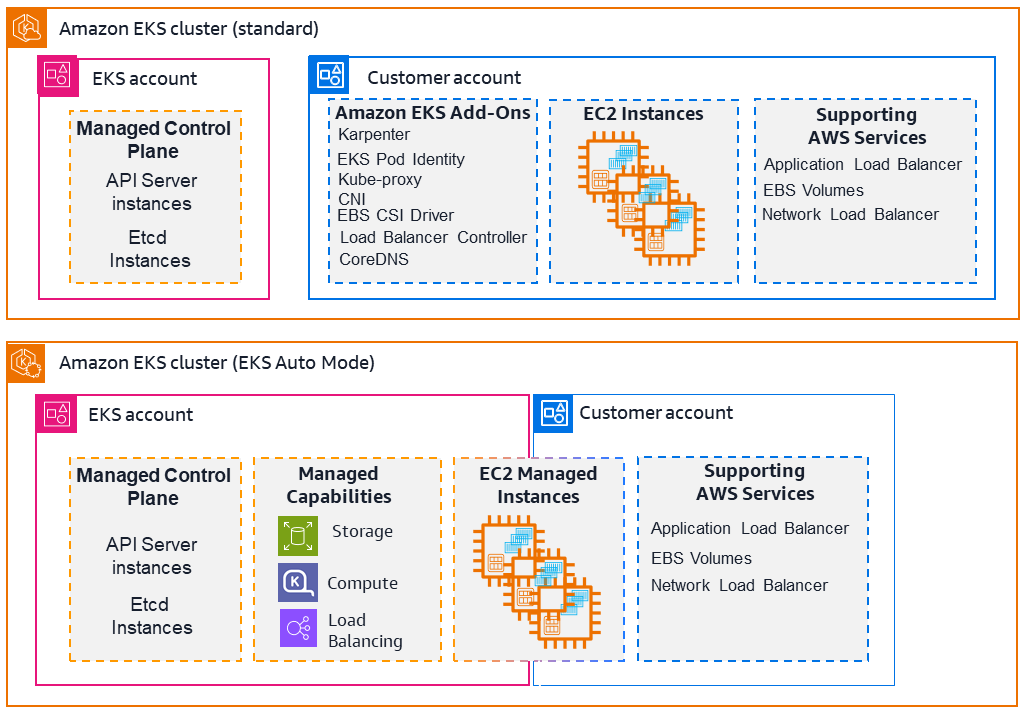
Auto Mode automates routine cluster tasks for compute, load balancing, storage and networking. We don't need to do any additional cluster configuration before launching our workloads. When using EKS Auto Mode, EC2 nodes are automatically provisioned and managed by EKS.
Auto Mode automatically scales cluster compute resources. If a pod can’t fit onto existing nodes, EKS Auto Mode creates a new one. EKS Auto Mode also consolidates workloads and deletes nodes. EKS Auto Mode builds upon Karpenter. source
EKS Auto Mode, which is the most managed option, handles provisioning, scaling and updates of the data plane along with providing managed Compute, Networking, and Storage capabilities. Auto Mode AMIs are released frequently and clusters are updated to the latest AMI automatically to deploy CVE fixes and security patches. You have the ability to control when this occurs by configuring disruption controls on your Auto Mode NodePools. source
Capabilities:
- Application load balancing
- Block Storage
- Compute Autoscaling
- GPU support
- Cluster DNS
- Pod and service networking
Standard mode vs Auto Mode
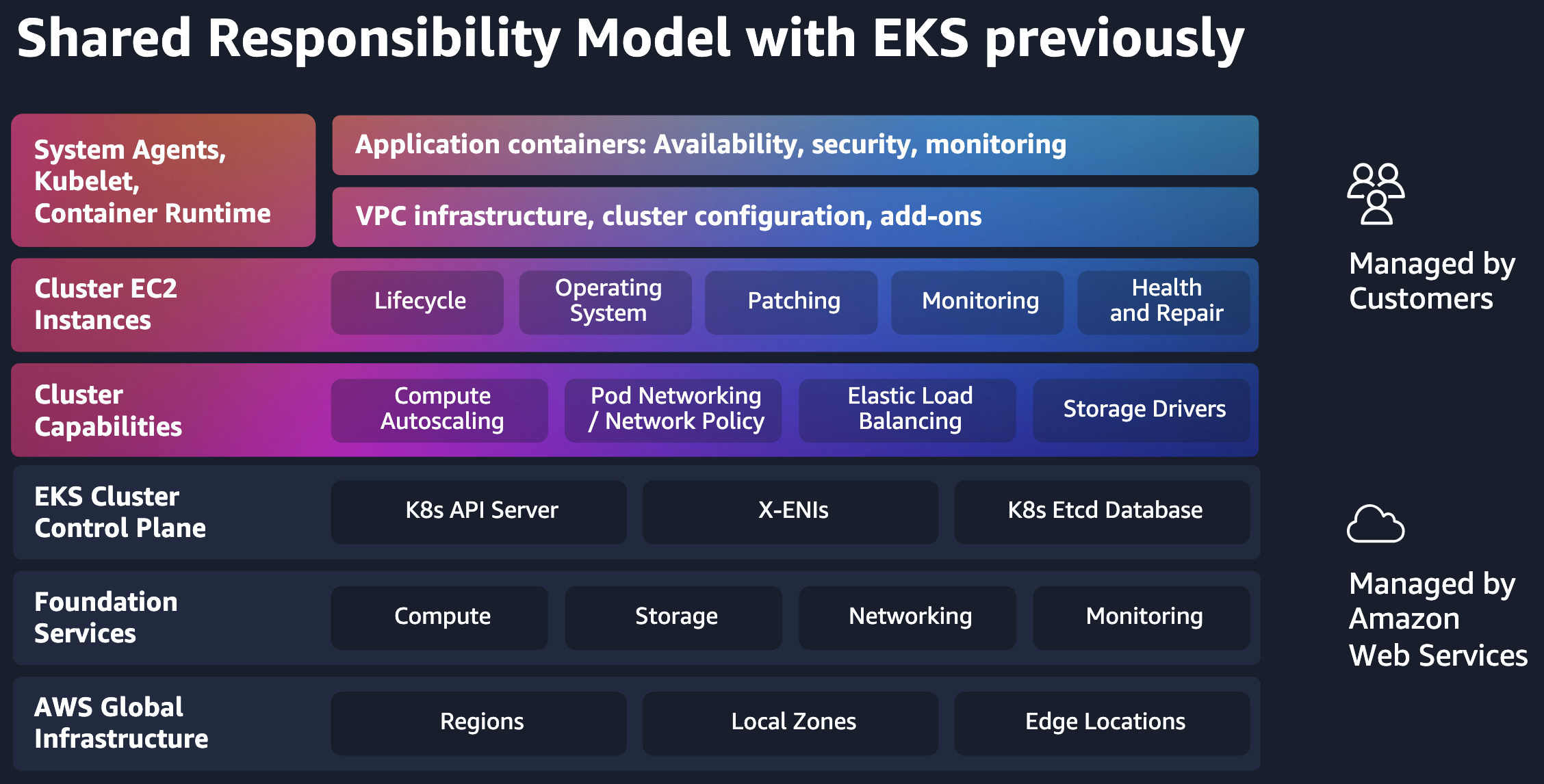
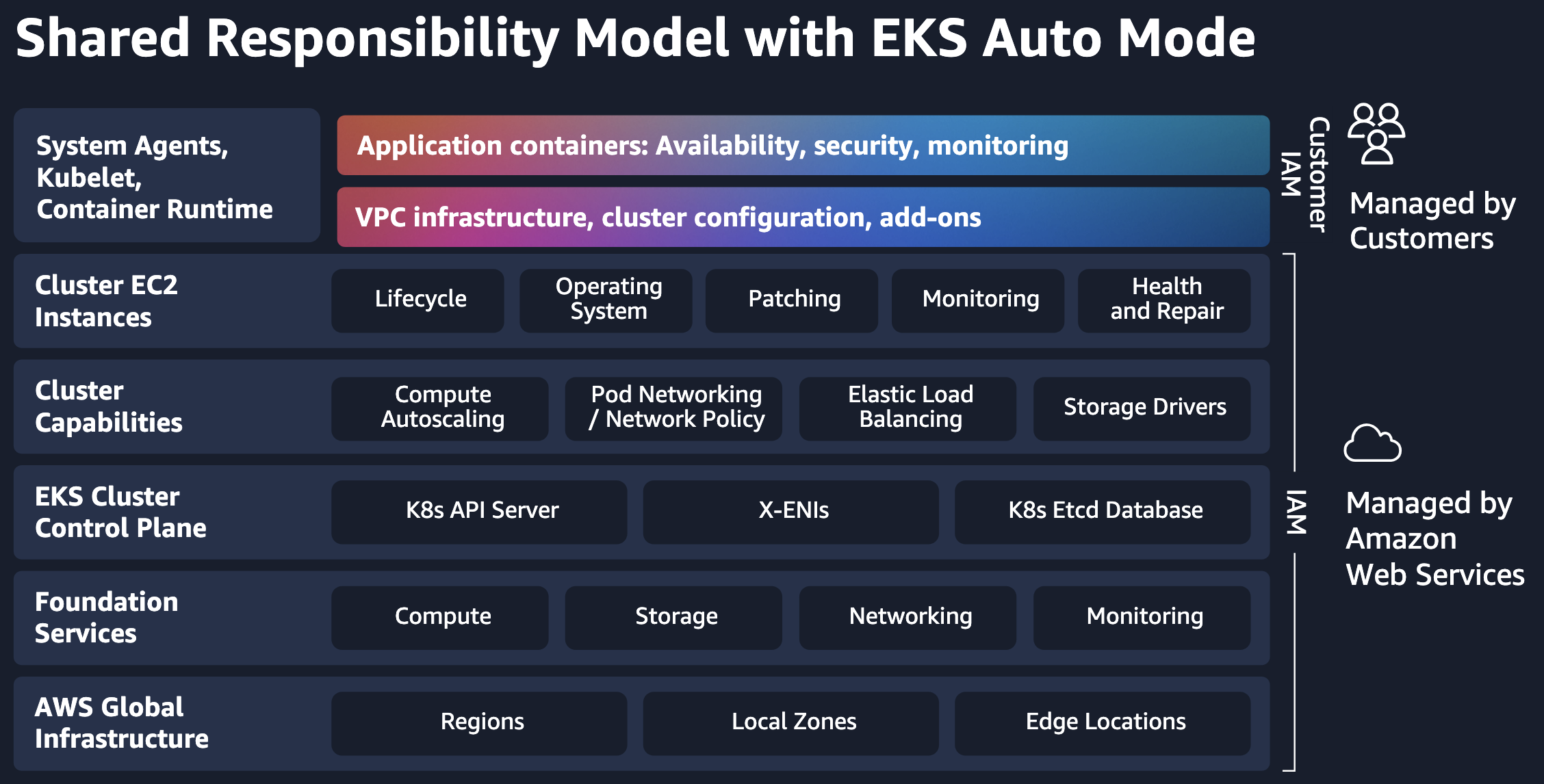
See Compare compute options and Shared responsibility model.
- Standard mode:
- AWS manages the control plane, you manage the worker nodes.
- Custom AMI nodes.
- Must update node Kubernetes version yourself.
- Auto Mode:
- AWS manages both control plane and worker nodes.
- AWS handles EC2 provisioning, scaling, OS patching and security.
Limitations
15 pods per node limit due to missing prefix delegation - https://github.com/aws/containers-roadmap/issues/2506 - https://www.reddit.com/r/aws/comments/1nucbz8/eks_auto_mode_missing_prefix_delegation/
https://shirmon.medium.com/aws-eks-auto-mode-the-good-the-bad-the-costly-9db72333927c
Auto Mode prices are not affected by instance discounts from Spot, RI, Savings plans etc.
for a project like Karpenter that’s focused on cost optimization, switching to AWS Auto Mode could potentially send your cloud bills soaring (especially given that lower pod capacity)
See opinions at:
- https://www.reddit.com/r/kubernetes/comments/1p9h1xf/anyone_running_eks_auto_mode_in_production/
- https://www.reddit.com/r/kubernetes/comments/1itumdr/eks_auto_mode_aka_managed_karpenter/
- https://www.reddit.com/r/kubernetes/comments/1m86yud/eks_autopilot_versus_karpenter/
Node Class
https://docs.aws.amazon.com/eks/latest/userguide/create-node-class.html
Defines infrastructure-level settings that apply to groups of nodes in your EKS cluster, including network configuration, storage settings, and resource tagging.
Node Pool
https://docs.aws.amazon.com/eks/latest/userguide/create-node-pool.html
Defines EC2 instance categories, CPU configurations, availability zones, architectures (ARM64/AMD64), and capacity types (spot or on-demand). You can also set resource limits for CPU and memory usage.
See https://www.reddit.com/r/kubernetes/comments/1itumdr/eks_auto_mode_aka_managed_karpenter/
Karpenter and the bootstrap Nodepool is the only K8s resource I ran on Terraform. Everything else is ArgoCD.
There are two default managed node pools: general-purpose and system. The general-purpose node pool handles user-deployed applications and services, while the system node pool is dedicated to critical system-level components managing cluster operations. Custom node pools can be created for specific compute or configuration requirements.
View the node pools:
kubectl get nodepools
kubectl get nodepools general-purpose -o yaml
View nodes of each node pool:
kubectl get nodes -l karpenter.sh/nodepool=general-purpose
kubectl get nodes -l karpenter.sh/nodepool=system
View pods on each general-purpose EC2 node:
for node in $(kubectl get nodes -l karpenter.sh/nodepool=general-purpose -o custom-columns=NAME:.metadata.name --no-headers); do
  echo "Pods on $node:"
  kubectl get pods --all-namespaces --field-selector spec.nodeName=$node
done
View pods on each node, showing the availability zone:
kubectl get node -L topology.kubernetes.io/zone --no-headers | while read node status roles age version zone; do
echo "Pods on node $node (Zone: $zone):"
  kubectl get pods --all-namespaces --field-selector spec.nodeName=$node -l app.kubernetes.io/instance=retail-store-app-ui
echo "-----------------------------------"
done
Enable Auto Mode
- https://catalog.workshops.aws/eks-auto-mode/en-US/10-enable-eks-auto-mode/10-enable-auto-mode
- https://catalog.workshops.aws/eks-auto-mode/en-US/40-migrations/20-enabling-eks-auto-mode
To use Auto Mode, the cluster role permissions policy needs to have the following managed policies or equivalent permissions (see docs):
- AmazonEKSComputePolicy - See description
- AmazonEKSBlockStoragePolicy - See description
- AmazonEKSLoadBalancingPolicy - See description
- AmazonEKSNetworkingPolicy - See description
- And the usual cluster role policy AmazonEKSClusterPolicy (see description and Cluster role).
Run this to attach the policies:
for POLICY in \
  "arn:aws:iam::aws:policy/AmazonEKSComputePolicy" \
  "arn:aws:iam::aws:policy/AmazonEKSBlockStoragePolicy" \
  "arn:aws:iam::aws:policy/AmazonEKSLoadBalancingPolicy" \
  "arn:aws:iam::aws:policy/AmazonEKSNetworkingPolicy" \
  "arn:aws:iam::aws:policy/AmazonEKSClusterPolicy"
do
  echo "Attaching policy ${POLICY} to IAM role ${CLUSTER_ROLE_NAME}..."
  aws iam attach-role-policy --role-name ${CLUSTER_ROLE_NAME} --policy-arn ${POLICY}
done
Verify the policies are attached:
aws iam list-attached-role-policies --role-name $CLUSTER_ROLE_NAME
And the cluster role trust policy needs to have the action sts:TagSession. Add it with:
aws iam update-assume-role-policy --role-name $CLUSTER_ROLE_NAME --policy-document '{
  "Version": "2012-10-17",
  "Statement": [
    {
      "Effect": "Allow",
      "Principal": {
        "Service": "eks.amazonaws.com"
      },
      "Action": [
        "sts:AssumeRole",
        "sts:TagSession"
      ]
    }
  ]
}'
Verify the role has the action sts:TagSession in the trust policy:
aws iam get-role --role-name $CLUSTER_ROLE_NAME | \
  jq -r '.Role.AssumeRolePolicyDocument.Statement[].Action[]'
Enable Auto Mode on an existing cluster:
aws eks update-cluster-config \
    --name $CLUSTER_NAME \
    --compute-config enabled=true,nodeRoleArn=$CLUSTER_NODE_ROLE_ARN,nodePools=system,general-purpose \
    --kubernetes-network-config '{"elasticLoadBalancing":{"enabled": true}}' \
    --storage-config '{"blockStorage":{"enabled": true}}'
Enabling Auto Mode adds some CRDs. Before:
$ kubectl get crds
NAME                                            CREATED AT
applicationnetworkpolicies.networking.k8s.aws   2025-11-18T07:33:34Z
clusternetworkpolicies.networking.k8s.aws       2025-11-18T07:33:34Z
clusterpolicyendpoints.networking.k8s.aws       2025-11-18T07:33:34Z
cninodes.vpcresources.k8s.aws                   2025-11-18T07:33:34Z
policyendpoints.networking.k8s.aws              2025-11-18T07:33:34Z
securitygrouppolicies.vpcresources.k8s.aws      2025-11-18T07:33:34Z
After:
$ kubectl get crds
NAME                                            CREATED AT
applicationnetworkpolicies.networking.k8s.aws   2025-11-18T07:33:34Z
clusternetworkpolicies.networking.k8s.aws       2025-11-18T07:33:34Z
clusterpolicyendpoints.networking.k8s.aws       2025-11-18T07:33:34Z
cninodes.eks.amazonaws.com                      2025-11-19T10:13:05Z
cninodes.vpcresources.k8s.aws                   2025-11-18T07:33:34Z
ingressclassparams.eks.amazonaws.com            2025-11-19T10:13:00Z
nodeclaims.karpenter.sh                         2025-11-19T10:12:46Z
nodeclasses.eks.amazonaws.com                   2025-11-19T10:12:46Z
nodediagnostics.eks.amazonaws.com               2025-11-19T10:12:46Z
nodepools.karpenter.sh                          2025-11-19T10:12:46Z
policyendpoints.networking.k8s.aws              2025-11-18T07:33:34Z
securitygrouppolicies.vpcresources.k8s.aws      2025-11-18T07:33:34Z
targetgroupbindings.eks.amazonaws.com           2025-11-19T10:13:00Z
nodepoolssupport provisioning computeingressclassparamsandtargetgroupbindingallow exposing applications, andnodediagnosticsprovide diagnostics capabilities
Fargate
https://docs.aws.amazon.com/eks/latest/userguide/fargate.html
https://www.eksworkshop.com/docs/fundamentals/compute/fargate/
No need to manage nodes. AWS manages everything below the pod. You simply define the CPU and memory, and AWS takes care of the rest.
Fargate compute runs in AWS owned accounts (in contrast with EC2 worker nodes, which run in customer accounts).
Better suited for stateless apps.
Pricing
Pricing is calculated per second with a 1-minute minimum. Duration is calculated from the time you start to download your container image (Docker pull) until the task terminates, rounded up to the nearest second. source
Limitations
See docs for more: https://docs.aws.amazon.com/eks/latest/userguide/fargate.html#fargate-consideration
- Private subnets only → No public IPs, and outbound internet traffic must use a NAT Gateway.
- No SSH.
- No EC2 instance metadata service (IMDS) available to pods.
- No DaemonSets.
- No dynamic persistent volumes (PV).
- Can’t mount EBS volumes to Fargate pods.
- No GPU.
Pod execution role
https://docs.aws.amazon.com/eks/latest/userguide/pod-execution-role.html
Fargate uses a Pod execution IAM role for defining pod-level permissions, instead of a node instance role.
This role is used by the components running on the Fargate infrastructure to make calls to AWS APIs on your behalf. For example, to pull images from ECR, send logs to CloudWatch, etc.
To create this role using the console, go to IAM → Roles, click "Create role" and set:
- Trusted entity type: AWS service
- Service or use case: EKS - Cluster. Allows access to other AWS service resources that are required to run Amazon EKS pods on AWS Fargate.
The wizard attaches the AWS managed permission policy AmazonEKSFargatePodExecutionRolePolicy. To have CloudWatch logging, after the role is created, go to the role page and at the Permissions tab, do "Add permissions" → "Attach policies" and attach CloudWatchLogsFullAccess. You can alternatively attach these permissions.
Trust policy (trusted entities):
{
  "Version": "2012-10-17",
  "Statement": [
    {
      "Effect": "Allow",
      "Principal": {
        "Service": "eks-fargate-pods.amazonaws.com"
      },
      "Action": "sts:AssumeRole"
    }
  ]
}
Fargate profile
https://docs.aws.amazon.com/eks/latest/userguide/fargate-profile.html
Tells EKS which pods should be scheduled on Fargate when launched.
You declare which pods run on Fargate using selectors (namespace and labels). You create a profile that matches the namespace and labels defined as part of your pod. You can have up to 5 selectors. Each selector must contain a namespace. A pod must have all of the label keys and values that you provide in order to match with the profile.
When you create a Fargate profile, you must specify a Pod execution role. This execution role is for the EKS components that run on the Fargate infrastructure using the profile. When new pods are started, they will run on Fargate using the execution role and subnets defined in your profile.
Note that you can only use private subnets.
A profile cannot be edited after creation, you need to create a new one.
Run a pod
Say that we have a pod selector with namespace my-namespace and label fargate. To run a pod we can do:
kubectl run httpd --image httpd:latest -n my-namespace --labels type=fargate
Initially it appears as "NOMINATED NODE", until the new node is ready.
kubectl get pods -n my-namespace -o wide
# NAME    READY   STATUS    RESTARTS   AGE     IP       NODE     NOMINATED NODE                                READINESS GATES
# httpd   0/1     Pending   0          7s      <none>   <none>   99476e54e7-a33fecd824b94f25a22a8ceaeee39e69   <none>

kubectl get pods -n my-namespace -o wide
# NAME    READY   STATUS    RESTARTS   AGE     IP               NODE                                     NOMINATED NODE   READINESS GATES
# httpd   1/1     Running   0          60s     172.31.100.212   fargate-ip-172-31-100-212.ec2.internal   <none>           <none>
Note that you need a NAT Gateway to pull the Docker image, otherwise you get the errors ErrImagePull and ImagePullBackOff.
Note that Fargate allocates a node for every pod. For example, if we have 2 pods running we have 2 nodes:
kubectl get nodes -n my-namespace
# NAME                                     STATUS   ROLES    AGE     VERSION
# fargate-ip-172-31-100-212.ec2.internal   Ready    <none>   42m     v1.34.0-eks-2bf45b0
# fargate-ip-172-31-121-49.ec2.internal    Ready    <none>   2d18h   v1.34.0-eks-2bf45b0
Deleting a pod (kubectl delete pod httpd -n my-namespace) also deletes the corresponding node.
CloudWatch logging
https://docs.aws.amazon.com/eks/latest/userguide/fargate-logging.html
To enable CloudWatch logging on Fargate pods, we need to create a ConfigMap named aws-logging at the namespace aws-observability.
When checking the Events section of kubectl describe pod httpd -n my-namespace, we see this event:
Events:
  Type     Reason           Age   From               Message
  ----     ------           ----  ----               -------
  Warning  LoggingDisabled  47s   fargate-scheduler  Disabled logging because aws-logging configmap was not found. configmap "aws-logging" not found
Note that we need to have CloudWatch permissions at the pod execution role. You can attach the AWS managed policy CloudWatchLogsFullAccess, or create a policy with these permissions (source):
{
  "Version": "2012-10-17",
  "Statement": [
    {
      "Effect": "Allow",
      "Action": [
        "logs:CreateLogStream",
        "logs:CreateLogGroup",
        "logs:DescribeLogStreams",
        "logs:PutLogEvents",
        "logs:PutRetentionPolicy"
      ],
      "Resource": "*"
    }
  ]
}
Create the namespace:
kubectl apply -f aws-observability-namespace.yaml
kind: Namespace
apiVersion: v1
metadata:
  name: aws-observability
  labels:
    aws-observability: enabled
Create the ConfigMap:
kubectl apply -f aws-logging-cloudwatch-configmap.yaml
kind: ConfigMap
apiVersion: v1
metadata:
  name: aws-logging
  namespace: aws-observability
data:
  flb_log_cw: 'true' # Set to true to ship Fluent Bit process logs to CloudWatch.
  filters.conf: |
    [FILTER]
        Name parser
        Match *
        Key_name log
        Parser crio
    [FILTER]
        Name kubernetes
        Match kube.*
        Merge_Log On
        Keep_Log Off
        Buffer_Size 0
        Kube_Meta_Cache_TTL 300s
  output.conf: |
    [OUTPUT]
        Name cloudwatch_logs
        Match   kube.*
        region us-east-1
        log_group_name my-logs
        log_stream_prefix from-fluent-bit-
        log_retention_days 60
        auto_create_group true
  parsers.conf: |
    [PARSER]
        Name crio
        Format Regex
        Regex ^(?<time>[^ ]+) (?<stream>stdout|stderr) (?<logtag>P|F) (?<log>.*)$
        Time_Key    time
        Time_Format %Y-%m-%dT%H:%M:%S.%L%z
Modify the yaml to set region to the AWS Region that your cluster is in, and my-logs to a better log group name. Once created, use kubectl get configmap app-config -o yaml to see the details.
Run a new pod:
kubectl run httpd --image httpd:latest -n my-namespace --labels type=fargate
Doing kubectl describe pod httpd -n my-namespace shows that logging is enabled:
Annotations:          CapacityProvisioned: 0.25vCPU 0.5GB
                      Logging: LoggingEnabled

Events:
  Type    Reason          Age   From               Message
  ----    ------          ----  ----               -------
  Normal  LoggingEnabled  68s   fargate-scheduler  Successfully enabled logging for pod
At the CloudWatch console you'll find a new log group named my-logs.
Load Balancer Controller
- Services Resources (L4) may expose Pods internally within a cluster or externally through an HA proxy.
- Ingress Resources (L7) may expose URI endpoints and route them to Services.
https://github.com/kubernetes-sigs/aws-load-balancer-controller
Route internet traffic with AWS Load Balancer Controller - https://docs.aws.amazon.com/eks/latest/userguide/aws-load-balancer-controller.html
The Load Balancer Controller manages Elastic Load Balancers for a Kubernetes cluster. The controller continuously monitors the Kubernetes API for objects of type Ingress (for ALB) and Service of type LoadBalancer (for NLB). It provisions AWS load balancers that point to cluster Service or Ingress resources. In other words, the controller creates a single IP address or DNS name that points to multiple pods in your cluster.
Correspondence:
- Kubernetes Service: LBC provisions a Classic Load Balancer (default) or Network Load Balancer
- Kubernetes Ingress: LBC provisions an Application Load Balancer
- Kubernetes Gateway: LBC provisions an Application Load Balancer
Note that at the cluster role we have the policy AmazonEKSClusterPolicy, which has many elasticloadbalancing permissions like elasticloadbalancing:CreateLoadBalancer. This allows EKS to create the load balancers.
You don't need the annotation alb.ingress.kubernetes.io/certificate-arn: arn:aws:acm:us-east-1:123456789012:certificate/xxxx.
Instead, use certificate discovery using spec.rules.host or spec.tls.hosts in the Ingress resource.
See docs: https://kubernetes-sigs.github.io/aws-load-balancer-controller/latest/guide/ingress/cert_discovery/
Install using Helm and IRSA
Instructions:
- https://docs.aws.amazon.com/eks/latest/userguide/lbc-helm.html
- https://kubernetes-sigs.github.io/aws-load-balancer-controller/latest/deploy/installation/
- https://github.com/aws/eks-charts/tree/master/stable/aws-load-balancer-controller
- https://artifacthub.io/packages/helm/aws/aws-load-balancer-controller
Steps:
- Create IAM permissions policy
AWSLoadBalancerControllerIAMPolicy. - Create the IAM role that uses the IAM policy.
- Create the Kubernetes service account and annotate it with the IAM role ARN, so that the service account assumes the IAM role.
- Install the AWS Load Balancer Controller using Helm.
- Apply the CRDs if updating.
The policy AWSLoadBalancerControllerIAMPolicy can be reused across multiple EKS clusters in the same AWS account. If you already have it, skip next steps.
Go to the IAM console → Policies and click "Create policy". Switch to the JSON tab and paste this IAM policy: https://raw.githubusercontent.com/kubernetes-sigs/aws-load-balancer-controller/v2.14.1/docs/install/iam_policy.json. Make sure you use the latest release. Name it AWSLoadBalancerControllerIAMPolicy.
You can also do:
curl -O https://raw.githubusercontent.com/kubernetes-sigs/aws-load-balancer-controller/v2.14.1/docs/install/iam_policy.json
aws iam create-policy \
    --policy-name AWSLoadBalancerControllerIAMPolicy \
    --policy-document file://iam_policy.json
If the cluster is new and you don't have an OIDC identity provider yet, create one following this instructions.
Next, create an IAM role to be used by the Kubernetes service account. Go to the IAM console → Roles and click "Create role". Set:
- Trusted entity type: Custom trust policy.
- Paste this trust policy (trusted entities), replacing
<account-id>and<oidc-provider>(oidc.eks.<region>.amazonaws.com/id/<id>):
{
  "Version": "2012-10-17",
  "Statement": [
    {
      "Effect": "Allow",
      "Principal": {
        "Federated": "arn:aws:iam::<account-id>:oidc-provider/<oidc-provider>"
      },
      "Action": "sts:AssumeRoleWithWebIdentity",
      "Condition": {
        "StringEquals": {
          "<oidc-provider>:aud": "sts.amazonaws.com",
          "<oidc-provider>:sub": "system:serviceaccount:kube-system:aws-load-balancer-controller"
        }
      }
    }
  ]
}
You can also choose Trusted entity type "Web identity" and select the OIDC IdP for your cluster from the list, but then you need to add the condition sub to the trust policy, for example by editing the trust policy JSON when the role is created.
The sub condition ensures that only the service account aws-load-balancer-controller in the kube-system namespace can assume this role. The service account name (aws-load-balancer-controller) can be anything, but it must match the value used when deploying the controller.
At the "Add permissions" page, attach the permissions policy AWSLoadBalancerControllerIAMPolicy created before. Name the role AmazonEKSLoadBalancerControllerRole-<cluster-name>.
Now that the IAM role is created, create the Kubernetes service account that uses this IAM role:
kubectl create serviceaccount aws-load-balancer-controller -n kube-system
To tell Kubernetes which IAM role should the service account use, annotate the service account with the ARN of the IAM role created before:
kubectl annotate serviceaccount aws-load-balancer-controller -n kube-system \
  eks.amazonaws.com/role-arn=arn:aws:iam::<account-id>:role/AmazonEKSLoadBalancerControllerRole-<cluster-name>
See the annotation with:
kubectl get serviceaccount aws-load-balancer-controller -n kube-system -o yaml
kubectl describe serviceaccount aws-load-balancer-controller -n kube-system
Finally, install the AWS Load Balancer Controller using Helm. See details at:
- https://docs.aws.amazon.com/eks/latest/userguide/lbc-helm.html#lbc-helm-install
- https://github.com/aws/eks-charts/tree/master/stable/aws-load-balancer-controller
helm repo add eks https://aws.github.io/eks-charts
helm repo update eks
helm install aws-load-balancer-controller eks/aws-load-balancer-controller \
  -n kube-system \
  --set clusterName=<my-cluster> \
  --set serviceAccount.create=false \
  --set serviceAccount.name=aws-load-balancer-controller \
  --set region=<us-east-1> \
  --set vpcId=<vpc-id>
Verify the installation with:
helm list -A
# NAME                        	NAMESPACE  	REVISION	UPDATED                             	STATUS  	CHART                              	APP VERSION
# aws-load-balancer-controller	kube-system	1       	2025-11-11 20:03:00.575674 +0100 CET	deployed	aws-load-balancer-controller-1.14.1	v2.14.1

kubectl get ingressclass
# NAME   CONTROLLER            PARAMETERS   AGE
# alb    ingress.k8s.aws/alb   <none>       16m

kubectl get deployment -n kube-system aws-load-balancer-controller
# NAME                           READY   UP-TO-DATE   AVAILABLE   AGE
# aws-load-balancer-controller   2/2     2            2           72m

kubectl get pods -n kube-system | grep aws-load-balancer-controller
kubectl get pods -n kube-system -l app.kubernetes.io/name=aws-load-balancer-controller
# aws-load-balancer-controller-65dcc7d589-tt6sr   1/1     Running   0          76m
# aws-load-balancer-controller-65dcc7d589-xtkpt   1/1     Running   0          76m
The deployed chart doesn’t receive security updates automatically. You need to manually upgrade to a newer chart when it becomes available. When upgrading, change install to upgrade in the previous command.
The helm install command automatically installs the custom resource definitions (CRDs) for the controller, but helm upgrade does not. When using helm upgrade, you must manually install the CRDs with:
wget https://raw.githubusercontent.com/aws/eks-charts/master/stable/aws-load-balancer-controller/crds/crds.yaml
kubectl apply -f crds.yaml
The two CRDs are ingressclassparams.elbv2.k8s.aws and targetgroupbindings.elbv2.k8s.aws. See them with kubectl get crd.
Classic Load Balancer - Service
Run this command to expose a deployment as a service and create a load balancer:
kubectl expose deployment <deployment> -n <namespace> --name myapp-service --port 8080 --type LoadBalancer
# service/myapp-service exposed
By default, creating this service creates a Classic Load Balancer with an "Internet-facing" scheme. A the EC2 console → Load Balancers, each EC2 instance registered at the "Target instances" tab are the EC2 nodes of the cluster. The CLB listens on TCP:8080 and forwards the request to registered EC2 instances using the instance protocol and port (eg TCP:30709) configured at the listener.
You can open the "DNS name" at the browser, for example http://ad4003564c7424c7a8991d29de4be1a7-2108949974.us-east-1.elb.amazonaws.com:8080/.
If you get this error when doing kubectl describe service myapp-service:
Events:
  Type     Reason                  Age                From                Message
  ----     ------                  ----               ----                -------
  Normal   EnsuringLoadBalancer    28s (x4 over 63s)  service-controller  Ensuring load balancer
  Warning  SyncLoadBalancerFailed  27s (x4 over 63s)  service-controller  Error syncing load balancer: failed to ensure load balancer: could not find any suitable subnets for creating the ELB
You need to tag subnets to tell EKS what subnets to use to deploy the load balancer. Add a tag to each subnet with the name kubernetes.io/cluster/<cluster-name> and value shared. See https://stackoverflow.com/questions/62468996/eks-could-not-find-any-suitable-subnets-for-creating-the-elb and https://repost.aws/knowledge-center/eks-vpc-subnet-discovery.
Deleting the service (kubectl delete service myapp-service -n <namespace>) also deletes the load balancer.
Network Load Balancer - Service
Route TCP and UDP traffic with Network Load Balancers - https://docs.aws.amazon.com/eks/latest/userguide/network-load-balancing.html
Auto Mode - Use Service Annotations to configure Network Load Balancers - https://docs.aws.amazon.com/eks/latest/userguide/auto-configure-nlb.html
By default, it creates a Classic Load Balancer. To create a Network Load Balancer instead, add this annotation to the Service manifest:
apiVersion: v1
kind: Service
metadata:
  annotations:
    service.beta.kubernetes.io/aws-load-balancer-type: nlb
Scheme can be internal (default) or internet-facing. To create an Internet-facing NLB, add this annotation:
metadata:
  annotations:
    service.beta.kubernetes.io/aws-load-balancer-scheme: internet-facing
Target type can be instance (default) or ip. You can customize it using this annotation:
metadata:
  annotations:
    service.beta.kubernetes.io/aws-load-balancer-nlb-target-type: ip
With target type ip, the NLB routes traffic directly to the pod IP addresses, instead of the node IP addresses. Network plugin must use native AWS VPC networking configuration for pod IP, for example Amazon VPC CNI plugin or an alternative CNI plugin.
Application Load Balancer - Ingress
Route application and HTTP traffic with Application Load Balancers - https://docs.aws.amazon.com/eks/latest/userguide/alb-ingress.html
ALB with Auto Mode - https://docs.aws.amazon.com/eks/latest/userguide/auto-configure-alb.html - https://docs.aws.amazon.com/eks/latest/userguide/auto-elb-example.html
You can define rules to route requests to different services based on URL paths and hostnames. For example, requests to /api can be routed to one service, while requests to /web go to another.
It can route traffic to pods running on EC2 and Fargate.
You can deploy an ALB to public or private subnets (source). Use public subnets to create an Internet-facing ALB, and private subnets to create an internal ALB.
Ingress specification - https://kubernetes-sigs.github.io/aws-load-balancer-controller/latest/guide/ingress/spec/
How it works:
- The Load Balancer Controller watches the Kubernetes API for new Ingress resources with the annotation
kubernetes.io/ingress.class: alb(deprecated) oringressClassName: alb. When a new Ingress is created or updated, the controller reacts accordingly. - Provisions a new Application Load Balancer (ALB) automatically. Based on the Ingress specification, it calls the AWS Elastic Load Balancing API to create or modify an ALB in your AWS account. It can reuse existing ALBs if configured (via Ingress annotations), or spin up new ones.
- Configures listeners. The ALB typically has two listeners on port 80 (HTTP) and port 443 (HTTPS, with ACM certificate). The controller can automatically handle HTTPS by attaching certificates from AWS Certificate Manager (ACM).
- For each
backendservicedeclared at the Ingress, the controller creates a Target Group, which is responsible for routing requests to the appropriate targets and health checking. The target group contains the pod IPs of your Kubernetes Service endpoints. It updates targets dynamically as pods scale up/down. - Sets up routing rules (host/path-based). It translates the rules section of your Ingress spec (hostnames and paths) into ALB listener rules.
Traffic modes (target types):
alb.ingress.kubernetes.io/target-type: instance. The default. Registers nodes as targets for the ALB. ALB routes traffic to your service NodePort and then is proxied to node IPs. The nodes then forward traffic to pods.alb.ingress.kubernetes.io/target-type: ip. Registers pods as targets for the ALB. ALB routes traffic directly to pod IPs. Service NodePort is bypassed. More efficient. Requires VPC CNI plugin or compatible CNI. Required for Fargate or EKS Hybrid Nodes.
You can add tags to the ALB with alb.ingress.kubernetes.io/tags: Environment=dev,Team=test.
Setup:
- Install the AWS Load Balancer Controller using Helm following these instructions.
- Deploy a sample application with a Service of type ClusterIP.
- Deploy an Ingress resource that points to the Service.
Deploy an application. For example, create a deployment and service:
apiVersion: apps/v1
kind: Deployment
metadata:
  name: my-app
  namespace: my-namespace
  labels:
    app: my-app
spec:
  replicas: 2
  selector:
    matchLabels:
      app: my-app
  template:
    metadata:
      labels:
        app: my-app
    spec:
      containers:
        - name: my-app
          image: hashicorp/http-echo:1.0.0
          args:
            - '-text=Hello from my-app'
          ports:
            - containerPort: 5678
              name: http
---
apiVersion: v1
kind: Service
metadata:
  name: my-service
  namespace: my-namespace
  labels:
    app: my-app
spec:
  type: ClusterIP
  selector:
    app: my-app
  ports:
    - protocol: TCP
      port: 80
      targetPort: http
Deploy an Ingress resource with the necessary annotations, rules and backend services. For example:
apiVersion: networking.k8s.io/v1
kind: Ingress
metadata:
  name: my-ingress
  namespace: my-namespace
  annotations:
    alb.ingress.kubernetes.io/scheme: internet-facing
    alb.ingress.kubernetes.io/subnets: subnet-07a3aa527ccdabc36,subnet-05bc3627ccda7a3aa
    alb.ingress.kubernetes.io/target-type: ip
spec:
  ingressClassName: alb
  rules:
    - http:
        paths:
          - path: /
            pathType: Prefix
            backend:
              service:
                name: my-service
                port:
                  number: 80
Note: don't use kubernetes.io/ingress.class: alb because is deprecated (see this and this), use ingressClassName: alb.
After creating it with kubectl apply -f alb-ingress.yaml, check the status with kubectl get ingress -n my-namespace:
NAME         CLASS   HOSTS   ADDRESS                                                                   PORTS   AGE
my-ingress   alb     *       k8s-albingre-demoalbi-2062cf2532-1738990837.us-east-1.elb.amazonaws.com   80      14m
The ADDRESS column shows the DNS name of the ALB created. The HOSTS column * means it accepts requests for any hostname.
At the EC2 console → Load Balancers, you can see the ALB. The ALB was automatically created by the AWS Load Balancer Controller after deploying the Ingress resource with the appropriate annotations.
The Target Groups page shows the target group created for the backend service, with the pod IPs registered as targets (use kubectl get pods -o wide to see the pod IPs). We can scale the deployment with kubectl scale deployment my-app --replicas 3 and see the target group updated automatically, with the new pod IP added as a target.
Delete the ingress (kubectl delete ingress my-ingress -n my-namespace or kubectl delete -f alb-ingress.yaml) to delete the ALB and target group. Delete the deployment and service with kubectl delete -f alb-sample-app.yaml.
Ingress with Terraform
Volumes
https://docs.aws.amazon.com/eks/latest/userguide/storage.html
You can use S3, EBS, EFS, FSX and Amazon File Cache using Container Storage Interface (CSI) drivers. CSI drivers allow you to expose storage systems to your Kubernetes cluster as persistent volumes. Each CSI driver is an add-on that you need to install.
CSI driver needs AWS IAM Permissions. You can use IRSA or EKS Pod Identities.
| Feature | EBS | EFS |
|---|---|---|
| Type | Block | File |
| Pod attachment | Single | Multiple |
| Access mode | ReadWriteOnce | ReadWriteMany |
| Fargate support | No | Yes |
| Storage | Provisioned upfront | Scales automatically |
| Performance | High IOPS and throughput | Scalable performance |
EBS CSI driver with IRSA
https://docs.aws.amazon.com/eks/latest/userguide/ebs-csi.html
https://github.com/kubernetes-sigs/aws-ebs-csi-driver
Note that you can’t mount Amazon EBS volumes to Fargate Pods, only to EC2 worker nodes.
Steps:
- Create the Identity Provider for your cluster.
- Create an IAM role for the EBS CSI driver with the permissions policy AmazonEBSCSIDriverPolicy.
- Install the EBS CSI Driver add-on at the cluster. This creates the service accounts used by the driver.
- Annotate the service account to link it to the IAM role.
- Create a PersistentVolumeClaim (PVC) that uses an EBS volume as storage for your pods.
- Create a pod that uses the PVC.
If you haven't already, create an Identity provider. See steps above at IRSA.
Then create the role that the CSI driver will use. Go to the IAM console → Roles and click "Create role". Set:
- Trusted entity type: Custom trust policy.
- Paste this trust policy, replacing
<account-id>and<oidc-provider>:
{
  "Version": "2012-10-17",
  "Statement": [
    {
      "Effect": "Allow",
      "Principal": {
        "Federated": "arn:aws:iam::<account-id>:oidc-provider/<oidc-provider>"
      },
      "Action": "sts:AssumeRoleWithWebIdentity",
      "Condition": {
        "StringEquals": {
          "<oidc-provider>:aud": "sts.amazonaws.com",
          "<oidc-provider>:sub": "system:serviceaccount:kube-system:ebs-csi-controller-sa"
        }
      }
    }
  ]
}
The <oidc-provider> is oidc.eks.<region>.amazonaws.com/id/<id>. You can get it at the console, at the cluster Overview tab → Details section → OpenID Connect provider URL (remove https://), or by running aws eks describe-cluster --name MyCluster --region us-east-1 --query cluster.identity.oidc.issuer --output text | sed -e "s/^https:\/\///".
At the next page, attach the permissions policy AmazonEBSCSIDriverPolicy to the role, which "allows the CSI driver service account to make calls to related services such as EC2 on your behalf". Name the role AmazonEKS_EBS_CSI_DriverRole as suggested in the docs.
Install the EBS CSI Driver add-on. At the EKS console, go to your cluster → "Add-ons" tab → click "Get more add-ons". Select "Amazon EBS CSI Driver". Select the latest version. For "Add-on access", choose "IAM roles for service accounts (IRSA)". Select the role AmazonEKS_EBS_CSI_DriverRole just created.
After installing the add-on, run kubectl get serviceaccounts -n kube-system | grep ebs to see the service account used by the driver, which is created automatically when installing the add-on. This returns ebs-csi-controller-sa and ebs-csi-node-sa.
We need to annotate the service account to link it to the IAM role. Run:
kubectl annotate serviceaccount ebs-csi-controller-sa -n kube-system eks.amazonaws.com/role-arn=arn:aws:iam::<account-id>:role/AmazonEKS_EBS_CSI_DriverRole
To see the annotation, run kubectl get serviceaccount ebs-csi-controller-sa -n kube-system -o yaml or kubectl describe serviceaccount ebs-csi-controller-sa -n kube-system.
This setup allows the service account used by the EBS CSI driver to assume the IAM role with the necessary permissions to manage EBS volumes on your behalf.
Once the driver is installed and the service account is annotated, define a PersistentVolumeClaim (PVC) that uses an EBS volume as storage for your pods:
apiVersion: v1
kind: PersistentVolumeClaim
metadata:
  name: ebs-pvc
spec:
  storageClassName: gp2
  accessModes:
    - ReadWriteOnce
  resources:
    requests:
      storage: 1Gi
EBS volumes can only be attached (mounted) to a single node at a time, so we set accessModes: ReadWriteOnce.
We set storageClassName: gp2, which is the default StorageClass created by the EBS CSI driver add-on. You can check it with kubectl get storageclass or kubectl get storageclasses.storage.k8s.io:
NAME   PROVISIONER             RECLAIMPOLICY   VOLUMEBINDINGMODE      ALLOWVOLUMEEXPANSION   AGE
gp2    kubernetes.io/aws-ebs   Delete          WaitForFirstConsumer   false                  7d17h
The reclaim policy Delete means that when the PVC is deleted, the underlying EBS volume is also deleted. The other option is Retain, which keeps the volume even after the PVC is deleted.
The WaitForFirstConsumer volume binding mode ensures that the volume is not created until a pod that uses the PVC is scheduled. This is important for EBS volumes because they need to be created in the same availability zone as the node where the pod will run. We also avoid provisioning unnecessary volumes, to save costs (in EBS you pay for provisioned storage, even if unused).
Create the PVC with kubectl apply -f ebs-pvc.yaml. Check it with kubectl get pvc or kubectl describe pvc ebs-pvc.
Name:          ebs-pvc
Namespace:     my-namespace
StorageClass:  gp2
Status:        Pending
Volume:
Labels:        <none>
Annotations:   <none>
Finalizers:    [kubernetes.io/pvc-protection]
Capacity:
Access Modes:
VolumeMode:    Filesystem
Used By:       <none>
Events:
  Type    Reason                Age                From                         Message
  ----    ------                ----               ----                         -------
  Normal  WaitForFirstConsumer  9s (x8 over 110s)  persistentvolume-controller  waiting for first consumer to be created before binding
Note that it says "waiting for first consumer to be created before binding". This is because no pod is using the PVC yet.
Create this pod manifest that uses the PVC:
apiVersion: v1
kind: Pod
metadata:
  name: ebs-app
  namespace: my-namespace
spec:
  volumes:
    - name: ebs-volume
      persistentVolumeClaim:
        claimName: ebs-pvc
  containers:
    - name: app
      volumeMounts:
        - name: ebs-volume
          mountPath: /opt
      image: ubuntu:24.04
      command:
        - sh
        - -c
        - while date; do echo "Hi at `date`" >> /opt/demo.out; sleep 30; done
The claimName needs to match the PVC name.
Create the pod that uses the persistent volume claim with kubectl apply -f ebs-pod.yaml. If we do kubectl get pvc ebs-pvc we see that the PVC status changes from Pending to Bound:
NAME      STATUS   VOLUME                                     CAPACITY   ACCESS MODES   STORAGECLASS   VOLUMEATTRIBUTESCLASS   AGE
ebs-pvc   Bound    pvc-c223eab5-bad5-458a-af4b-0d16ecacd589   1Gi        RWO            gp2            <unset>                 107m
Now you can run kubectl get pv to see the created persistent volume that uses an EBS volume:
NAME                                       CAPACITY   ACCESS MODES   RECLAIM POLICY   STATUS   CLAIM                  STORAGECLASS   VOLUMEATTRIBUTESCLASS   REASON   AGE
pvc-c223eab5-bad5-458a-af4b-0d16ecacd589   1Gi        RWO            Delete           Bound    my-namespace/ebs-pvc   gp2            <unset>                          25m
At the EC2 console → Elastic Block Store → Volumes, you see a new EBS volume created. From there you can go to the EC2 instance, by clicking the instance id at "Attached resources". At the instance Storage tab, you can see the root volume (20 GiB) and the new EBS volume (1 GiB) attached.
You can also run this command to see the EBS volume details:
aws ec2 describe-volumes --filters Name=tag:kubernetes.io/created-for/pvc/name,Values=ebs-pvc
To clean up, delete the pod and the PVC. Just deleting the pod leaves the PVC and the EBS volume intact. Because the PV reclaim policy is Delete, the EBS volume is deleted when the PVC is deleted.
kubectl delete -f ebs-pod.yaml

kubectl get pvc
# NAME      STATUS   VOLUME                                     CAPACITY   ACCESS MODES   STORAGECLASS   VOLUMEATTRIBUTESCLASS   AGE
# ebs-pvc   Bound    pvc-c223eab5-bad5-458a-af4b-0d16ecacd589   1Gi        RWO            gp2            <unset>                 175m
kubectl get pv
# NAME                                       CAPACITY   ACCESS MODES   RECLAIM POLICY   STATUS   CLAIM                  STORAGECLASS   VOLUMEATTRIBUTESCLASS   REASON   AGE
# pvc-c223eab5-bad5-458a-af4b-0d16ecacd589   1Gi        RWO            Delete           Bound    my-namespace/ebs-pvc   gp2            <unset>                          96m

kubectl delete -f ebs-pvc.yaml

kubectl get pvc
# No resources found in my-namespace namespace.
kubectl get pv
# No resources found
Verify that the EBS volume is deleted with (response should be an empty array):
aws ec2 describe-volumes --filters Name=tag:kubernetes.io/created-for/pvc/name,Values=ebs-pvc
Volume Claim Templates
In the previous section EBS CSI driver with IRSA we show how to manually create a PersistentVolumeClaim (PVC) to use EBS storage for a single pod. In this section we see how to use VolumeClaimTemplates to request dynamic storage for multiple pods in a StatefulSet.
With StatefulSets, each pod has its own persistent storage. You can use VolumeClaimTemplates to request dynamic storage for each pod in the StatefulSet. Each pod gets its own PersistentVolumeClaim (PVC) based on the template, allowing for unique storage per pod. Even if the pod is deleted and recreated (rescheduled), it gets the same PVC and retains its data.
Stateful set manifest example:
apiVersion: apps/v1
kind: StatefulSet
metadata:
  name: web
spec:
  serviceName: nginx
  replicas: 1
  selector:
    matchLabels:
      app: nginx
  template:
    metadata:
      labels:
        app: nginx
    spec:
      containers:
        - name: nginx
          image: nginx:1.25
          ports:
            - containerPort: 80
              name: web
          volumeMounts:
            - name: www
              mountPath: /usr/share/nginx/html
  volumeClaimTemplates:
    - metadata:
        name: www
      spec:
        storageClassName: gp2
        accessModes: ['ReadWriteOnce']
        resources:
          requests:
            storage: 1Gi
Instead of creating a PVC manually and then referencing it at the pod manifest, we define a volumeClaimTemplates section in the StatefulSet spec. Each pod in the StatefulSet gets its own PVC based on this template. Each PVC will create a PV and provision an EBS volume.
Note that the volumeClaimTemplates spec is the same than a regular PVC spec.
Create the StatefulSet with kubectl apply -f ebs-statefulset.yaml. This creates 1 pod, 1 PVC and 1 PV. Use kubectl get pod,pvc,pv to see them. Use aws ec2 describe-volumes --filters Name=tag:kubernetes.io/created-for/pvc/name,Values="www-web-*" to see the created EBS volume.
Scale the StatefulSet to 2 replicas with kubectl scale statefulset web --replicas 2. This creates one more pod, which dynamically creates a PVC, which in turns provisions an EBS volume for that pod using the CSI driver. Each pod has its own volume. The volume is attached to the node where the pod is running.
Delete the StatefulSet set with kubectl delete -f ebs-statefulset.yaml. We are using persistent volumes, so deleting the StatefulSet deletes the pods but does not delete the PVCs, PVs and EBS volumes (that's the point of persistent volumes). However, note that after deleting the pods the state of EBS volumes is now "Available" at the EC2 console, because the volumes are no longer attached to a node. At the EC2 instance Storage tab, the EBS volumes are gone. You need to delete the PVCs manually with kubectl delete pvc <pvc-name> or kubectl delete pvc --all. Deleting the PVC deletes the PV and the underlying EBS volume, because the PV reclaim policy is Delete.
EFS CSI driver with Pod Identity
https://docs.aws.amazon.com/eks/latest/userguide/efs-csi.html
https://github.com/kubernetes-sigs/aws-efs-csi-driver
EFS nodes can be shared across multiple pods simultaneously. We can set accessModes: ReadWriteMany in the PVC.
Instead of using IRSA, we use Pod Identity to grant the necessary IAM permissions to the EFS CSI driver.
Unlike EBS, which can only be used in node groups, EFS can be mounted to Fargate pods.
Unlike EBS, in EFS volume binding is immediate, so the volume is created as soon as the PVC is created, not when the pod is scheduled.
Steps:
- Create the IAM role with the
AmazonEFSCSIDriverPolicypolicy. - Install the EFS CSI Driver add-on at the cluster.
- This creates the service accounts used by the driver.
- Use Pod Identity to bind the role to the service account.
- If using the console to install the add-on, this step is done automatically when installing the CSI driver, when selecting "EKS Pod Identity" as "Add-on access". Check the "Access" tab at the cluster, under "Pod Identity associations".
- Create the EFS file system.
- This is an important difference with EBS, where the volume is created dynamically when the PVC is created. With EFS we need to create the file system beforehand.
- Define a StorageClass that references the EFS file system.
- Create a PersistentVolume (PV) that uses the StorageClass and ReadWriteMany access mode.
- Create a PersistentVolumeClaim (PVC) that uses the StorageClass and ReadWriteMany access mode.
- Create a pod that uses the PVC.
Create the role that the CSI driver will use. Go to the IAM console → Roles and click "Create role". Set:
- Trusted entity type: AWS service.
- Service or use case: EKS - Pod Identity. Allows pods running in Amazon EKS cluster to access AWS resources.
Attach the AWS managed policy AmazonEFSCSIDriverPolicy, which "provides management access to EFS resources and read access to EC2". Name the role AmazonEKS_EFS_CSI_DriverRole as suggested in the docs.
At the cluster, install the EFS CSI Driver add-on. At the EKS console, go to your cluster → "Add-ons" tab → click "Get more add-ons". Select "Amazon EFS CSI Driver". Select the latest version. For "Add-on access", choose "EKS Pod Identity". Select the role AmazonEKS_EFS_CSI_DriverRole just created.
After installing the driver, run kubectl get serviceaccounts -n kube-system | grep efs to see the service account used by the driver, which is created automatically when installing the add-on. This returns efs-csi-controller-sa and efs-csi-node-sa.
There is an important difference with EBS. In EBS the volumes are automatically created when the pods are scheduled with a PVC, but in EFS we need to create the file system beforehand, it won't be created automatically.
You need to create the EFS file system in the same VPC as your EKS cluster (you can also use VPC peering). The EC2 nodes and the subnets used in the Fargate profile need to have network access to the EFS mount targets. You need to create a mount target for each subnet that your nodes are in. The security group used by the EFS mount targets must allow inbound NFS traffic (TCP port 2049) from the CIDR block of the cluster's VPC.
You can create the EFS filesystem at the EFS console, or using the AWS CLI, following these steps: https://github.com/kubernetes-sigs/aws-efs-csi-driver/blob/master/docs/efs-create-filesystem.md
Check the current storage classes with kubectl get storageclass or kubectl get storageclasses.storage.k8s.io. There should be none related to EFS. Output is:
NAME   PROVISIONER             RECLAIMPOLICY   VOLUMEBINDINGMODE      ALLOWVOLUMEEXPANSION   AGE
gp2    kubernetes.io/aws-ebs   Delete          WaitForFirstConsumer   false                  5h1m
Create a StorageClass that references the EFS file system:
apiVersion: storage.k8s.io/v1
kind: StorageClass
metadata:
  name: efs-sc
provisioner: efs.csi.aws.com
Create the StorageClass with kubectl apply -f efs-storageclass.yaml. Now there should be two storage classes:
NAME     PROVISIONER             RECLAIMPOLICY   VOLUMEBINDINGMODE      ALLOWVOLUMEEXPANSION   AGE
efs-sc   efs.csi.aws.com         Delete          Immediate              false                  6s
gp2      kubernetes.io/aws-ebs   Delete          WaitForFirstConsumer   false                  5h3m
The volume binding mode is Immediate, so the volume binding and dynamic provisioning occurs once the PersistentVolumeClaim is created. In contrast, WaitForFirstConsumer delays the binding and provisioning of a PersistentVolume until a Pod using the PersistentVolumeClaim is created.
Create a PersistentVolume:
apiVersion: v1
kind: PersistentVolume
metadata:
  name: efs-pv
spec:
  capacity:
    storage: 5Gi
  volumeMode: Filesystem
  accessModes:
    - ReadWriteMany
  persistentVolumeReclaimPolicy: Retain
  storageClassName: efs-sc # StorageClass created earlier
  csi:
    driver: efs.csi.aws.com
    volumeHandle: fs-02dc12e5f3d8805eb # Replace with your EFS file system ID
With ReadWriteMany, multiple nodes can access the volume simultaneously. With Retain, the PV and underlying EFS file system are retained when the PVC is deleted.
Create the PV with kubectl apply -f efs-pv.yaml. Check it with kubectl get pv or kubectl describe pv efs-pv. The status is Available:
NAME     CAPACITY   ACCESS MODES   RECLAIM POLICY   STATUS      CLAIM   STORAGECLASS   VOLUMEATTRIBUTESCLASS   REASON   AGE
efs-pv   5Gi        RWX            Retain           Available           efs-sc         <unset>                          6s
Create a PersistentVolumeClaim (PVC) that uses the StorageClass:
apiVersion: v1
kind: PersistentVolumeClaim
metadata:
  name: efs-pvc
spec:
  accessModes:
    - ReadWriteMany
  storageClassName: efs-sc
  resources:
    requests:
      storage: 5Gi
Create the PVC with kubectl apply -f efs-pvc.yaml. Check it with kubectl get pvc or kubectl describe pvc efs-pvc. Now the status of the PV changes to Bound, since the PVC is bound to it:
kubectl get pvc
# NAME      STATUS   VOLUME   CAPACITY   ACCESS MODES   STORAGECLASS   VOLUMEATTRIBUTESCLASS   AGE
# efs-pvc   Bound    efs-pv   5Gi        RWX            efs-sc         <unset>                 6s

kubectl get pv
# NAME     CAPACITY   ACCESS MODES   RECLAIM POLICY   STATUS   CLAIM          STORAGECLASS   VOLUMEATTRIBUTESCLASS   REASON   AGE
# efs-pv   5Gi        RWX            Retain           Bound    demo/efs-pvc   efs-sc         <unset>                          4m30s
Create a Deployment to test that the EFS volume can be mounted on multiple pods:
apiVersion: apps/v1
kind: Deployment
metadata:
  name: efs-app
spec:
  replicas: 3
  selector:
    matchLabels:
      app: efs-app
  template:
    metadata:
      labels:
        app: efs-app
    spec:
      containers:
        - name: app
          image: busybox
          command: ['/bin/sh']
          args:
            [
              '-c',
              'while true; do echo Hello at `date` from `hostname` >> /data/out1.txt; sleep 5; done',
            ]
          volumeMounts:
            - name: efs-volume
              mountPath: /data
      volumes:
        - name: efs-volume
          persistentVolumeClaim:
            claimName: efs-pvc
Create the Deployment with kubectl apply -f efs-deployment.yaml. Check the pods with kubectl get pods. Once the pods are running, shell into one of them and check that the file is being written:
kubectl exec -it <pod-name> -- /bin/sh
cat /data/out1.txt
# Hello at Tue Nov 11 11:07:30 UTC 2025 from efs-app-7b9b97ccbd-99jc5
# Hello at Tue Nov 11 11:07:31 UTC 2025 from efs-app-7b9b97ccbd-7nb2x
# Hello at Tue Nov 11 11:07:31 UTC 2025 from efs-app-7b9b97ccbd-2chds
# ...
df -ah /data
# Filesystem                Size      Used Available Use% Mounted on
# 127.0.0.1:/               8.0E         0      8.0E   0% /data
We can also launch pods on Fargate that use the same EFS PVC. The EFS file system can be shared between EC2 nodes and Fargate pods simultaneously.
To clean up, delete the Deployment, the PVC, the PV and the EFS file system (the file system is not deleted automatically):
kubectl delete -f efs-deployment.yaml
kubectl delete -f efs-pvc.yaml # Or kubectl delete pvc efs-pvc

# Deleting the PVC changes the PV status from "Bound" to "Released", but the PV is not
# deleted because the reclaim policy is "Retain".
kubectl get pv
# NAME     CAPACITY   ACCESS MODES   RECLAIM POLICY   STATUS     CLAIM          STORAGECLASS   VOLUMEATTRIBUTESCLASS   REASON   AGE
# efs-pv   5Gi        RWX            Retain           Released   demo/efs-pvc   efs-sc         <unset>                          39m

kubectl delete -f efs-pv.yaml # Or kubectl delete pv efs-pv
# Deleting the PV does not delete the underlying EFS file system nor the StorageClass.
# You can delete the StorageClass with `kubectl delete -f efs-storageclass.yaml` or `kubectl delete storageclass efs-sc`.
Finally, delete the EFS file system at the EFS console. If using the CLI, you need to delete the mount targets first (otherwise you get the error FileSystemInUse).
Autoscaling
https://docs.aws.amazon.com/eks/latest/userguide/autoscaling.html
https://www.eksworkshop.com/docs/fundamentals/workloads/
https://kubernetes.io/docs/concepts/cluster-administration/node-autoscaling/
| What it scales | Description | |
|---|---|---|
| CA (Cluster Autoscaler) | Nodes | Adjusts desired size of Auto Scaling groups |
| Karpenter | Nodes | Faster provisioning and better cost optimization (spot instances) |
| VPA (Vertical Pod Autoscaler) | Pod CPU/memory requests | Needs to be installed |
| HPA (Horizontal Pod Autoscaler) | Pod replicas based on CPU/memory usage or custom metrics | Installed by default in Kubernetes |
| CPA (Cluster Proportional Autoscaler ) | Pod replicas based on cluster size | |
| KEDA (Kubernetes Event-driven Autoscaling) | Pod replicas based on external events (eg Prometheus) |
Node autoscaling looks for pods in Penging state that cannot be scheduled due to insufficient resources. Pod autoscaling looks at the resource usage of running pods.
Cluster Autoscaler
https://github.com/kubernetes/autoscaler/tree/master/cluster-autoscaler
https://docs.aws.amazon.com/eks/latest/best-practices/cas.html
Cluster Autoscaler on AWS - https://github.com/kubernetes/autoscaler/blob/master/cluster-autoscaler/cloudprovider/aws/README.md
When you create a node group, it creates an Auto Scaling group (and its corresponding launch template). The node group has a desired, minimum, and maximum size. The Auto Scaling group simply maintains the number of EC2 nodes in the group based on the desired size, replacing any unhealthy instances, but it doesn't do any scaling based on workload, because there are no scaling policies in the Auto Scaling group.
We want to scale up the number of nodes when new pods are scheduled and there are not enough resources in the cluster, and scale down the number of nodes when there are idle nodes. This is done with the Kubernetes Cluster Autoscaler, which adjusts the desired size of the Auto Scaling group.
Nodes are not terminated abruptly. The Cluster Autoscaler first cordons and drains the node, evicting the pods running on it by rescheduling them to other nodes. Once the node is empty, it is terminated.
The Cluster Autoscaler runs as a Deployment in the kube-system namespace. Only 1 replica (ie one pod) runs. It needs an IAM role with the necessary permissions to manage the Auto Scaling groups. You can use IRSA to assign the role to the Cluster Autoscaler service account. The service account also runs in the kube-system namespace.
If you are using the Kubernetes Cluster Autoscaler and running stateful pods, you should create one Node Group for each availability zone using a single subnet and enable the
--balance-similar-node-groupsfeature in cluster autoscaler. (From the console Info sidebar.)
Terraform:
- https://github.com/aws-samples/eks-workshop-v2/tree/stable/manifests/modules/autoscaling/compute/cluster-autoscaler/.workshop/terraform
- https://github.com/Apress/AWS-EKS-Essentials/tree/main/chapter19-autoscaler
Setup Cluster Autoscaler with IRSA and Auto-Discovery
Resources:
- https://github.com/kubernetes/autoscaler/blob/master/cluster-autoscaler/cloudprovider/aws/CA_with_AWS_IAM_OIDC.md
- https://github.com/kubernetes/autoscaler/blob/master/cluster-autoscaler/cloudprovider/aws/README.md#auto-discovery-setup
- https://github.com/kubernetes/autoscaler/blob/master/cluster-autoscaler/cloudprovider/aws/examples/cluster-autoscaler-autodiscover.yaml
Auto-Discovery Setup is the preferred method to configure Cluster Autoscaler.
The Auto Scaling group has 2 tags that allow the Cluster Autoscaler to discover and manage it:
- Key:
k8s.io/cluster-autoscaler/enabled- Value:true - Key:
k8s.io/cluster-autoscaler/<cluster-name>- Value:owned
You use the CLI flag --node-group-auto-discovery to set these tags. Note that the value will be ignored, only the tag name matters.
Create the permissions policy. At the IAM console → Policies, click "Create policy". Switch to the JSON tab and paste the policy from https://github.com/kubernetes/autoscaler/blob/master/cluster-autoscaler/cloudprovider/aws/README.md#full-cluster-autoscaler-features-policy-recommended, replacing <asg-arn> and <my-cluster>:
{
  "Version": "2012-10-17",
  "Statement": [
    {
      "Effect": "Allow",
      "Action": [
        "autoscaling:DescribeAutoScalingGroups",
        "autoscaling:DescribeAutoScalingInstances",
        "autoscaling:DescribeLaunchConfigurations",
        "autoscaling:DescribeScalingActivities",
        "ec2:DescribeImages",
        "ec2:DescribeInstanceTypes",
        "ec2:DescribeLaunchTemplateVersions",
        "ec2:GetInstanceTypesFromInstanceRequirements",
        "eks:DescribeNodegroup"
      ],
      "Resource": ["*"]
    },
    {
      "Effect": "Allow",
      "Action": [
        "autoscaling:SetDesiredCapacity",
        "autoscaling:TerminateInstanceInAutoScalingGroup"
      ],
      "Resource": ["<asg-arn>"],
      "Condition": {
        "StringEquals": {
          "aws:ResourceTag/k8s.io/cluster-autoscaler/enabled": "true",
          "aws:ResourceTag/k8s.io/cluster-autoscaler/<my-cluster>": "owned"
        }
      }
    }
  ]
}
Important: I've modified the second "Resource": ["*"] by setting the ASG ARN to restrict access to only a specific Auto Scaling group, as suggested in the docs (only the second block of actions should be updated to restrict the resources/add conditionals). I've also added the Condition block, as shown at https://docs.aws.amazon.com/eks/latest/best-practices/cas.html, which prevents a Cluster Autoscaler running in one cluster from modifying nodegroups in a different cluster even if the --node-group-auto-discovery argument wasn’t scoped down to the nodegroups of the cluster using tags.
Name the permissions policy AmazonEKS_ClusterAutoscalerPolicy-<cluster-name>.
Create a Role with "Trusted entity type" "Custom trust policy". Set this trust policy, replacing <account-id> and <oidc-provider> (oidc.eks.<region>.amazonaws.com/id/<id>):
{
  "Version": "2012-10-17",
  "Statement": [
    {
      "Effect": "Allow",
      "Principal": {
        "Federated": "arn:aws:iam::<account-id>:oidc-provider/<oidc-provider>"
      },
      "Action": "sts:AssumeRoleWithWebIdentity",
      "Condition": {
        "StringEquals": {
          "<oidc-provider>:aud": "sts.amazonaws.com",
          "<oidc-provider>:sub": "system:serviceaccount:kube-system:cluster-autoscaler"
        }
      }
    }
  ]
}
The service account name (cluster-autoscaler) in the policy needs to match the value in the Kubernetes manifest. Attach the permissions policy just created (AmazonEKS_ClusterAutoscalerPolicy-<cluster-name>) to the role. Name the role AmazonEKS_ClusterAutoscalerRole-<cluster-name>.
To deploy the Cluster Autoscaler, download the file from https://github.com/kubernetes/autoscaler/blob/master/cluster-autoscaler/cloudprovider/aws/examples/cluster-autoscaler-autodiscover.yaml, then make the following changes:
- At the Deployment, at the
--node-group-auto-discoverycommand line flag, replace<YOUR CLUSTER NAME>for the tagk8s.io/cluster-autoscaler/<cluster-name>. - At the ServiceAccount, add this annotation so that the service account uses the IAM role just created:
apiVersion: v1
kind: ServiceAccount
metadata:
  labels:
    k8s-addon: cluster-autoscaler.addons.k8s.io
    k8s-app: cluster-autoscaler
  name: cluster-autoscaler
  namespace: kube-system
  annotations:
    eks.amazonaws.com/role-arn: arn:aws:iam::<account-id>:role/AmazonEKS_ClusterAutoscalerRole-<cluster-name>
Also:
- Make sure that the image version (
registry.k8s.io/autoscaling/cluster-autoscaler:v1.32.1) matches the Kubernetes version of your cluster. See Releases for version compatibility. - You may want to add command line arguments like
--balance-similar-node-groupsand--skip-nodes-with-system-pods=false.
Deploy the Cluster Autoscaler with kubectl apply -f cluster-autoscaler-autodiscover.yaml.
- View the pod with
kubectl get pods -n kube-system | grep cluster-autoscaler. - Inspect the pod with
kubectl describe pod -n kube-system cluster-autoscaler-<xyz>. - Check the logs with
kubectl logs [-f] -n kube-system deployment/cluster-autoscalerorkubectl logs [-f] -n kube-system cluster-autoscaler-<xyz>.
To test the Cluster Autoscaler, create a deployment and then scale it to many pods that request enough resources to require more nodes than currently available. The Cluster Autoscaler will then scale up the Auto Scaling group by increasing the desired capacity, launching new EC2 nodes. Once the new nodes are ready, the pending pods will be scheduled.
apiVersion: apps/v1
kind: Deployment
metadata:
  name: cluster-autoscaler-test
  labels:
    app: cluster-autoscaler-test
spec:
  replicas: 1
  selector:
    matchLabels:
      app: cluster-autoscaler-test
  template:
    metadata:
      labels:
        app: cluster-autoscaler-test
    spec:
      containers:
        - name: httpd
          image: httpd
          resources:
            limits:
              memory: 512Mi
              cpu: 500m
Do the following:
- Check the current number of nodes and pods with
kubectl get nodesandkubectl get pods. - Open two terminal windows and watch new nodes and pods being created with
kubectl get nodes -wandkubectl get pods -w.- You can also wait for all nodes and pods to have status Ready with
kubectl wait --for=condition=Ready nodes --allandkubectl wait --for=condition=Ready pods --all. - You can also use the
watchcommand:watch kubectl get nodesandwatch kubectl get pods.
- You can also wait for all nodes and pods to have status Ready with
- Apply the deployment with
kubectl apply -f cluster-autoscaler-test-deployment.yaml. - Scale up the deployment to 5 or 10 replicas with
kubectl scale deployment cluster-autoscaler-test --replicas=5. - Check the Cluster Autoscaler logs to see the scaling activity with
kubectl logs [--follow] -n kube-system deployment/cluster-autoscaler. You can see logs like "Scale up in group eks-My-EKS-Node-Group-d6cd375e-e065-401f-769b-58cdc5869a47 finished successfully in 50.165152427s".
Initially the new pods will be in Pending state because there are not enough resources. When new nodes are ready (its status changes from NotReady to Ready), the pod state changes from Pending to ContainerCreating and then Running.
Doing kubectl describe pod cluster-autoscaler-test-<xyz> shows the TriggeredScaleUp event due to "Insufficient memory":
Events:
  Type     Reason            Age    From                Message
  ----     ------            ----   ----                -------
  Warning  FailedScheduling  2m53s  default-scheduler   0/4 nodes are available: 1 Too many pods, 4 Insufficient memory. no new claims to deallocate, preemption: 0/4 nodes are available: 4 No preemption victims found for incoming pod.
  Warning  FailedScheduling  2m19s  default-scheduler   0/5 nodes are available: 1 Too many pods, 1 node(s) had untolerated taint {node.cloudprovider.kubernetes.io/uninitialized: true}, 4 Insufficient memory. no new claims to deallocate, preemption: 0/5 nodes are available: 1 Preemption is not helpful for scheduling, 4 No preemption victims found for incoming pod.
  Warning  FailedScheduling  2m18s  default-scheduler   0/5 nodes are available: 1 Too many pods, 1 node(s) had untolerated taint {node.kubernetes.io/not-ready: }, 4 Insufficient memory. no new claims to deallocate, preemption: 0/5 nodes are available: 1 Preemption is not helpful for scheduling, 4 No preemption victims found for incoming pod.
  Warning  FailedScheduling  2m14s  default-scheduler   0/5 nodes are available: 1 Too many pods, 1 node(s) had untolerated taint {node.kubernetes.io/not-ready: }, 4 Insufficient memory. no new claims to deallocate, preemption: 0/5 nodes are available: 1 Preemption is not helpful for scheduling, 4 No preemption victims found for incoming pod.
  Normal   Scheduled         2m     default-scheduler   Successfully assigned demo/cluster-autoscaler-test-5cf8cdc587-jvzrj to ip-172-31-46-244.ec2.internal
  Normal   TriggeredScaleUp  2m48s  cluster-autoscaler  pod triggered scale-up: [{eks-My-EKS-Node-Group-d6cd375e-e065-401f-769b-58cdc5869a47 4->5 (max: 5)}]
  Normal   Pulling           119s   kubelet             Pulling image "httpd"
Test the scale down/in by scaling down the deployment to 1 replica with kubectl scale deployment cluster-autoscaler-test --replicas=1.
Pods are terminated immediately, in a few seconds, but nodes are not, it takes about 10 minutes. There is a cool down period before idle nodes are terminated, which can be configured with the --scale-down-unneeded-time flag.
Check the Cluster Autoscaler logs to see the scale down activity. You should see logs like "node ip-172-31-46-244.ec2.internal may be removed", "Starting scale down" and "Considering node ip-172-31-46-244.ec2.internal for standard scale down".
The node status changes from Ready to Ready,SchedulingDisabled and then NotReady,SchedulingDisabled. At the state Ready,SchedulingDisabled, the node is cordoned (which prevents new pods from being scheduled on it) and drained. Once all pods are evicted, the node is terminated.
Delete the deployment with kubectl delete -f cluster-autoscaler-test-deployment.yaml. Optionally delete the Cluster Autoscaler with kubectl delete -f cluster-autoscaler-autodiscover.yaml.
Horizontal Pod Autoscaler
https://kubernetes.io/docs/concepts/workloads/autoscaling/horizontal-pod-autoscale/
https://docs.aws.amazon.com/eks/latest/userguide/horizontal-pod-autoscaler.html
https://www.eksworkshop.com/docs/fundamentals/workloads/horizontal-pod-autoscaler/
Installed by default in Kubernetes (is part of the core Kubernetes API).
Vertical Pod Autoscaler
https://kubernetes.io/docs/concepts/workloads/autoscaling/vertical-pod-autoscale/
https://docs.aws.amazon.com/eks/latest/userguide/vertical-pod-autoscaler.html
https://github.com/kubernetes/autoscaler/blob/master/vertical-pod-autoscaler/README.md
Needs to be insatalled.
Cluster Proportional Autoscaler
https://github.com/kubernetes-sigs/cluster-proportional-autoscaler
https://www.eksworkshop.com/docs/fundamentals/workloads/cluster-proportional-autoscaler/
Kubernetes Event-Driven Autoscaler (KEDA)
https://github.com/kedacore/keda
https://www.eksworkshop.com/docs/fundamentals/workloads/keda/
Amazon Managed Service for Prometheus
aws amp list-scrapers
aws amp delete-scraper --scraper-id <scraper-id>